Finish a PDF
Fill it in, sign it, lock it and shrink it, one step at a time.
or drop it here. PDF files up to 50 MB
Your file stays on your device. Nothing is uploaded unless you choose Email it to me.
- Open
- Fill
- Sign
- Lock
- Shrink
- Save
Your file stays on your device. Every step is optional and you can undo it.
- 2 free uses in total, no account needed
- No ads
- Nothing to install
How it works
1. Add your PDF
Choose your PDF from your device or drop it on the page.
2. Work through the steps
Work through Fill, Sign, Lock and Shrink. Skip any you do not need.
3. Name it and save it
Name it, add a password if you want one, and download.
What you can do in this tool
Fill any form
Fillable fields work, and so does a plain page of lines and boxes.
Sign and date
Add your signature, initials or the date, as a picture placed on the page.
Lock your answers
Lock draws your answers and signature into the page so they can no longer be edited.
Shrink under a limit
Pick 1, 2, 5 or 10 MB. Photos shrink and text stays text.
Skip or undo
Press Skip on any step you do not need, or Undo to take the last one back.
Good to know
- Every step is optional. You can undo the last one or go back at any point.
- Lock puts typed answers and your signature into the page. It is not a password lock; add a password at the Save step if you want one.
- Your signature is a picture of your signature placed on the page. It is not a certificate-based digital signature.
Common questions
How do I finish a PDF?
Add the file, then go through the steps in order: Fill, Sign, Lock, Shrink and Save. Each step uses the same tools as Fill PDF, Sign PDF, Flatten PDF and Compress PDF, and you can skip any of them. At the end you name the file and download one finished copy.
What does it mean to finish a PDF?
It means taking a PDF from blank or draft to ready to send: the form is filled in, it is signed, it is locked so nobody can change the answers, and it is small enough to upload or attach. Finish PDF puts those jobs in one place so you do not have to open four tools.
Can I finish a form that has no fillable fields?
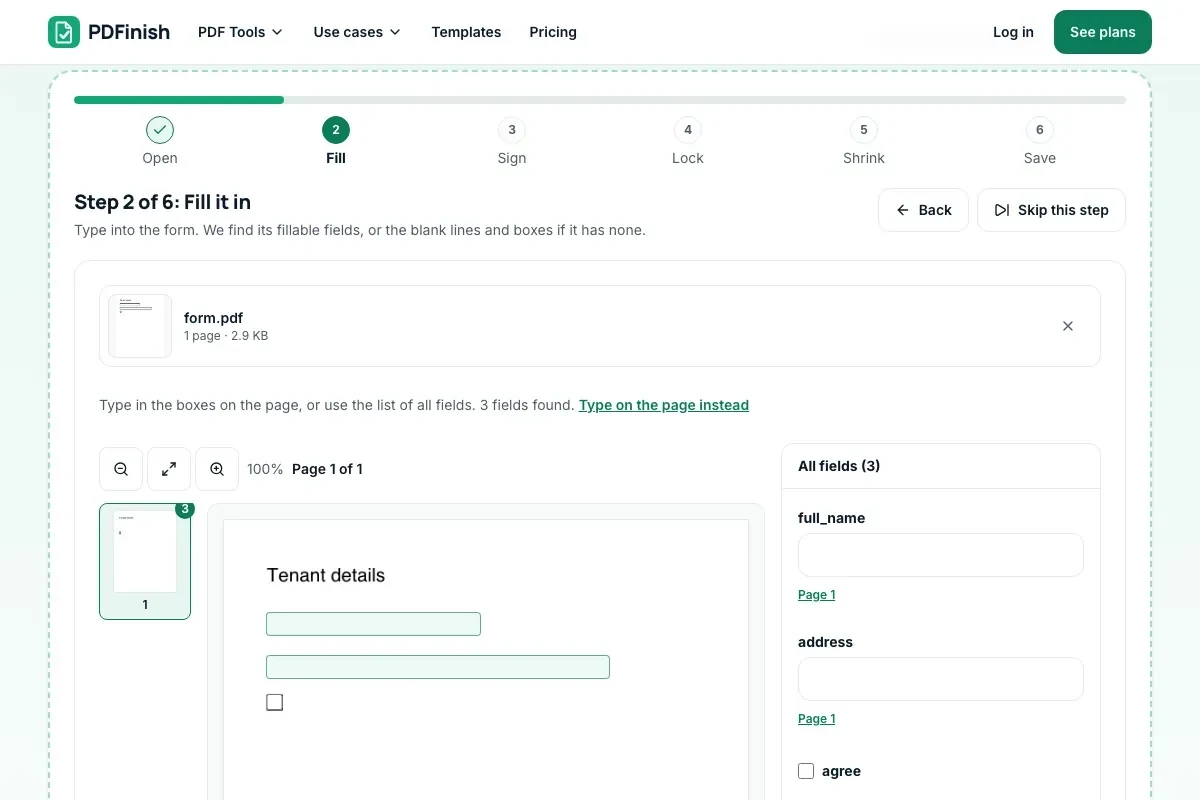
Yes. If the PDF has no fields, the Fill step finds its blank lines and boxes and lets you type on them and tick them. Scanned forms work too, because you place text on the page.
Does finishing use more than one use?
No. Each step works on the file the step before it made, and the steps are free. The finished file you download, share or email at the end counts as one of your free uses. Pro has no limit on uses.
How do I stop people from changing a PDF after I sign it?
Use the Lock step after you sign. It draws your answers and signature into the page and removes the form fields, so there is nothing left to type into. For a stronger lock, add a password at the Save step. Someone with a PDF editor can still add to or cover a page, so a lock is for keeping a file as final, not for keeping secrets.
Is my file uploaded when I use Finish PDF?
No. Every step runs in your browser, including the password. The file is not sent to our servers.
Is Finish PDF free, and are there limits?
You can use it free. You get 2 free uses in total, no account needed. Free files can be up to 50 MB. Pro has no limit on uses and allows files up to 500 MB. We check the limits before a use starts, so a finished file is never held back.
Can I use Finish PDF on a Windows PC?
Yes. Open this page in Chrome or Edge on your PC, add your file and download the result. Nothing to install, and your file stays on your device.
More about this tool
How to finish a PDF in 3 steps
Finishing a PDF means filling it in, signing it, locking it so it cannot be changed, and making it small enough to send. Finish PDF does all four in one guided flow in your browser: add the file, work through the steps you need, and save the finished copy.
- 1
Add your PDF
Drop the document onto the tool, or choose it from your device. A form with fillable fields, a plain page of lines and boxes, a contract and a scan all work.
- 2
Work through the steps
Fill in the form, add your signature, initials or the date, lock your answers into the page, and pick a size limit if the file must be small. Press Skip on any step you do not need, or Undo to take the last one back.
- 3
Name it and save it
Give the finished file a name, add a password if you want one, and download it. It is one new PDF; your original is never changed.
Key facts
- Privacy: We don't sell your data. This tool runs in your browser, so your files stay on your device and are never uploaded.
- Ads: none. No third-party ads and no ad cookies.
- Limits: 2 free uses in total, no account needed, and no limit on uses with Pro. Files up to 50 MB free, 500 MB with Pro. Limits are checked before a use starts, never after.
- Price: free to start. Pro is $2.99 a month or $24 a year. Lifetime is $50 for the first 500 founders. Pro cancels in one click.
- Works on: Windows, Mac, iPhone, Android. Nothing to install.
- The steps are Fill, Sign, Lock, Shrink and Save. Every one is optional, and you can undo the last one or go back at any point.
- Filling, signing, locking and shrinking are free. The finished file you download, share or email counts as one of your free uses.
- Lock puts typed answers and your signature into the page, so they can no longer be edited. The text stays selectable. It is not a password lock; add a password at the Save step if you want one.
- Your signature is a picture of your signature placed on the page. It is not a certificate-based digital signature.
- Shrink saves the photos inside smaller until the file is under the size you pick (1, 2, 5 or 10 MB, for an upload limit such as "maximum 2 MB"), and keeps text as text. If it cannot get there, it says so and tells you what to try next.
Last updated:
By the PDFinish editorial team · Reviewed
Coming from another PDF tool?
See a pdfFiller alternative or the PDFinish vs pdfFiller comparison. PDFinish is a separate product and is not affiliated with pdfFiller.
Start from an official form
Finish PDF opens an official form directly: pick one below, type in the boxes, sign if the form asks for it, and save your copy.
- fill out and sign the W-9 online
- fill out and sign the W-4 online
- fill out and sign the I-9 online
- fill out and sign the 4506-T online
- fill out and sign the 8822 online
- fill out and sign the 8822-B online
- fill out and sign the SS-4 online
- fill out and sign the 2848 online
- fill out and sign the 8821 online
- fill out and sign the W-4P online
- fill out and sign the 1099-NEC online
- fill out and sign the 1099-MISC online
- fill out and sign the W-2 online
- fill in the DS-11 online
- fill out and sign the DS-82 online
- fill out and sign the PS 1583 online
- fill out and sign the W-8BEN online
- fill out and sign the 4868 online
- fill out and sign the W-7 online
- fill out and sign the 1040-X online
- fill out and sign the 941 online
- fill out and sign the 2553 online
- fill out and sign the 8832 online
- fill out and sign the 843 online
- fill out and sign the 8962 online
- fill out and sign the CMS-L564 online
- fill out and sign the 940 online
- fill out and sign the CMS-40B online
- fill out and sign the W-8BEN-E online
- fill out and sign the 9465 online
- fill out and sign the 1040-ES online
See every official form PDFinish can fill.
Related toolsEdit
Fill PDF
Fill any PDF form: type, tick, sign and date.
Sign PDF
Draw or type your signature and place it on the page.
Fill and Sign PDF
Fill a form, tick boxes, sign it, and send it back by email or share sheet.
Flatten PDF
Lock form fields and comments into the page.
Compress PDF
Shrink a PDF so it is easier to email and upload.
Password Protect PDF
Add a password so only people you trust can open the file.