Convert HTML to PDF
Add an HTML file or paste your code and get a PDF.
or drop it here. .html, .htm or .zip files. HTML files up to 50 MB
Your file stays on your device. Nothing is uploaded unless you choose Email it to me.
- 2 free uses in total, no account needed
- No ads
- Nothing to install
How it works
1. Add your HTML
Choose a .html file or a .zip with pictures, or paste your code.
2. Choose how it looks
Pick serif or sans-serif, a text size and a page size.
3. Download your PDF
Save the PDF. Each heading becomes a bookmark.
What you can do in this tool
What carries over
Headings, paragraphs, bold and italic, lists, quotes, simple tables, preformatted text and JPG or PNG pictures carry over.
Headings become bookmarks
The page flows onto as many pages as it needs, and each heading is a bookmark.
Pictures in a zip
Put pictures in a .zip next to the page, or embed them in the HTML as data: pictures.
Never run as a live page
Your HTML is read and drawn in your browser. No script in it can run, and no web address in it is visited.
Works on any device
Runs in your browser on Windows, Mac, iPhone, Android or a Chromebook. Nothing to install.
Good to know
- Your HTML is read and drawn in your browser. It is never opened as a live page, so no script in it can run, and no web address in it is visited.
- Headings, paragraphs, bold and italic, lists, quotes, simple tables, preformatted text and JPG or PNG pictures carry over. Headings become bookmarks.
- Pictures at web addresses are not loaded. Put them in a .zip next to the page, or embed them in the HTML as data: pictures. Styles (CSS) are not applied.
Common questions
How do I convert an HTML file to PDF?
Add the .html file, or paste your HTML. Choose the font, text size and page size, then press Convert to PDF. The file downloads from the result screen. If your page has pictures, drop a .zip that holds the page and its pictures instead.
Can I convert a web page by its address?
No. Giving us an address would mean our server visits it for you, and a server that fetches any address on request can be made to visit places it should not. To save a live page, use your browser's Print, then Save as PDF. This tool is for HTML files and code.
Why are my pictures missing?
Pictures at web addresses (http or https) are not loaded, on purpose. Pictures inside a .zip next to your page work, and so do pictures embedded in the HTML as data: JPG or PNG. GIF, WebP and SVG pictures are skipped. The note under your HTML counts the web pictures it found.
Is the layout the same as in a browser?
No. We draw the content in a plain, readable layout and do not apply CSS, so colours, fonts, columns and positioned boxes are not kept. It suits articles, notes, invoices, receipts and reports. For an exact copy of a live page, use your browser's Print and Save as PDF.
Do scripts in my HTML run?
No. Your HTML is read as text and drawn, never opened as a live page. Scripts, styles and embedded frames are skipped, so a page that builds its content with JavaScript will come out empty or partly empty. Save the finished page from your browser first if you need that content.
Is my file uploaded when I use HTML to PDF?
No. Your HTML is laid out and saved as a PDF in your browser. The file is not sent to our servers.
Is HTML to PDF free, and are there limits?
You can use it free. You get 2 free uses in total, no account needed. Free files can be up to 50 MB. Pro has no limit on uses and allows files up to 500 MB. We check the limits before a use starts, so a finished file is never held back.
Can I use HTML to PDF on a Windows PC?
Yes. Open this page in Chrome or Edge on your PC, add your file and download the result. Nothing to install, and your file stays on your device.
More about this tool
How to convert HTML to PDF in 3 steps
To convert HTML to PDF, add your .html file (or a .zip with the page and its pictures) or paste your HTML, choose the font, size and page size, and download the PDF. Nothing is uploaded, no web address is fetched and no script runs.
- 1
Add your HTML
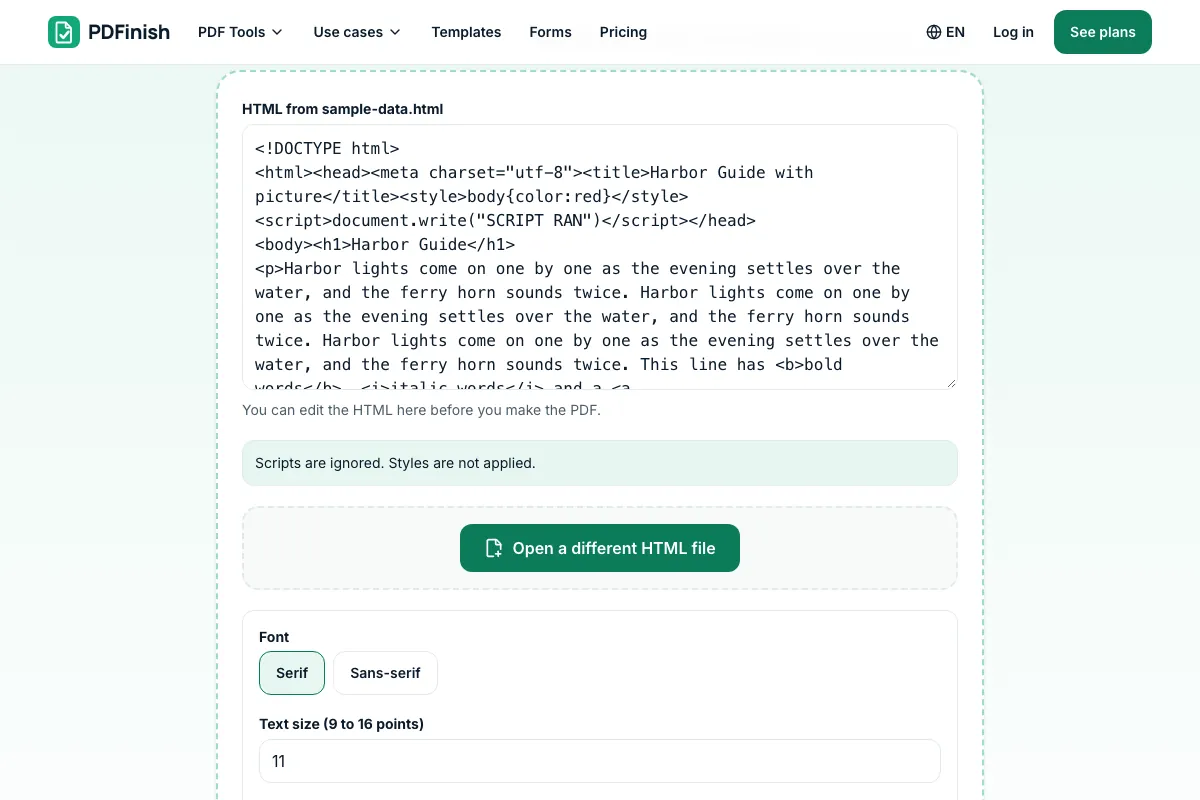
Drop a .html or .htm file onto the tool, or choose one from your device. If the page has pictures, put the page and its pictures in a .zip and drop that. You can also paste HTML instead, and edit it before you make the PDF.
- 2
Choose how it looks
Pick serif or sans-serif, a text size from 9 to 16 points, and A4 or US Letter. The note under the HTML tells you what will be left out, such as pictures at web addresses.
- 3
Download your PDF
Save the finished file. The page flows onto as many pages as it needs, and each heading is a bookmark.
How do I save a web page as a PDF?
For a page you have open, the simplest way is your browser's own Print, then Save as PDF, which keeps the page looking as it does on screen. Use HTML to PDF when you have an HTML file or code instead. It reads the file in your browser, with no upload.
How do I convert HTML to PDF?
Add your .html file to HTML to PDF, or paste your code, choose a font and page size, and download the PDF. Your HTML is read in your browser. It is not sent to our servers, and no web address in it is visited.
How do I convert HTML code to PDF?
Choose Or paste your HTML on the tool, paste the code, check the note about what will be left out, and press Convert to PDF. You can edit the code in the box first. Pictures must be embedded as data: pictures, because web addresses are not loaded.
Can I convert an HTML page with images to PDF?
Yes. Put the .html file and its pictures in one folder, zip them together, and drop the .zip on the tool. Pictures the page points to by a relative path, such as img/photo.png, are placed in the PDF. JPG and PNG work. Pictures at web addresses are not loaded.
Can I convert an HTML email or receipt to PDF?
Yes, if you have it as an .html file. Save the email or receipt as HTML from your mail program or the site, then add the file. Text, tables and lists carry over in a plain layout. For an Outlook .msg or an .eml file, use MSG to PDF or EML to PDF instead.
Does HTML to PDF keep CSS styles?
No. Styles are not applied, so colours, custom fonts, columns and exact positions are not kept. You get a clean, readable layout instead, with headings, bold, italic, lists, quotes and tables. If the exact look matters, print the page from your browser as a PDF.
Is it safe to convert HTML to PDF online?
With HTML to PDF, your file is read and drawn inside your browser and is not sent to our servers. The HTML is never opened as a live page, so scripts in it cannot run, and we never fetch a web address from it. You can check this in your browser's network tab.
Can I convert HTML to PDF for free?
Yes. You get 2 free uses in total with no account, and one conversion counts as one use. Free files can be up to 50 MB each. Pro has no limit on uses and allows files up to 500 MB. The limit is checked before the conversion starts.
Can I turn a PDF back into text or HTML?
You can pull the words out of a PDF with PDF to Text, which gives you plain text in reading order. We do not make HTML from a PDF. For a plain text file going the other way, use TXT to PDF, which has a monospace option.
Can I convert several HTML files into one PDF?
Convert each file on its own, then join the PDFs with Merge PDF, which also runs in your browser. Each conversion is one of your free uses. A zip with several pages uses only the page nearest the top, so zip each page with its pictures separately.
Key facts
- Privacy: We don't sell your data. This tool runs in your browser, so your files stay on your device and are never uploaded.
- Ads: none. No third-party ads and no ad cookies.
- Limits: 2 free uses in total, no account needed, and no limit on uses with Pro. Files up to 50 MB free, 500 MB with Pro. Limits are checked before a use starts, never after.
- Price: free to start. Pro is $2.99 a month or $24 a year. Lifetime is $50 for the first 500 founders. Pro cancels in one click.
- Works on: Windows, Mac, iPhone, Android. Nothing to install.
- Your HTML is read and drawn in your browser. It is never opened as a live page, so no script in it can run, and no web address in it is visited.
- Headings, paragraphs, bold and italic, lists, quotes, simple tables, preformatted text and JPG or PNG pictures carry over. Headings become bookmarks.
- Pictures at web addresses are not loaded. Put them in a .zip next to the page, or embed them in the HTML as data: pictures. Styles (CSS) are not applied.
Last updated:
By the PDFinish editorial team · Reviewed
Related toolsConvert
TXT to PDF
Turn a plain text file, or text you paste, into a PDF.
Markdown to PDF
Turn a Markdown file or pasted Markdown into a clean PDF.
Word to PDF
Convert a Word document into a PDF.
JPG to PDF
Turn photos and scans into a single PDF.
Add Page Numbers to PDF
Stamp page numbers onto every page of a PDF.
Add Bookmarks to PDF
Add and reorder bookmarks that jump to pages.
Merge PDF
Combine several PDFs into one file, in the order you choose.
Compress PDF
Shrink a PDF so it is easier to email and upload.
EML to PDF
Turn a saved .eml email into a PDF with its header.
MSG to PDF
Turn an Outlook .msg email into a PDF, with its attachments.
SVG to PDF
Turn an SVG into a PDF that stays sharp at any size.
PDF to HTML
Turn a PDF into one clean HTML file.
XML to PDF
Turn an XML file into a readable, indented PDF.
JSON to PDF
Turn a JSON file into a readable, indented PDF.