Add a header and footer to a PDF
Type header and footer text, check the preview, then save.
or drop it here. PDF files up to 50 MB
Your file stays on your device. Nothing is uploaded unless you choose Email it to me.
- 2 free uses in total, no account needed
- No ads
- Nothing to install
How it works
1. Add your PDF
Choose it from your device or drop it on the page.
2. Type your header and footer
Type the left, center and right text, and pick the pages.
3. Check the preview and save
Check the preview, then save the new PDF.
What you can do in this tool
Left, center, right
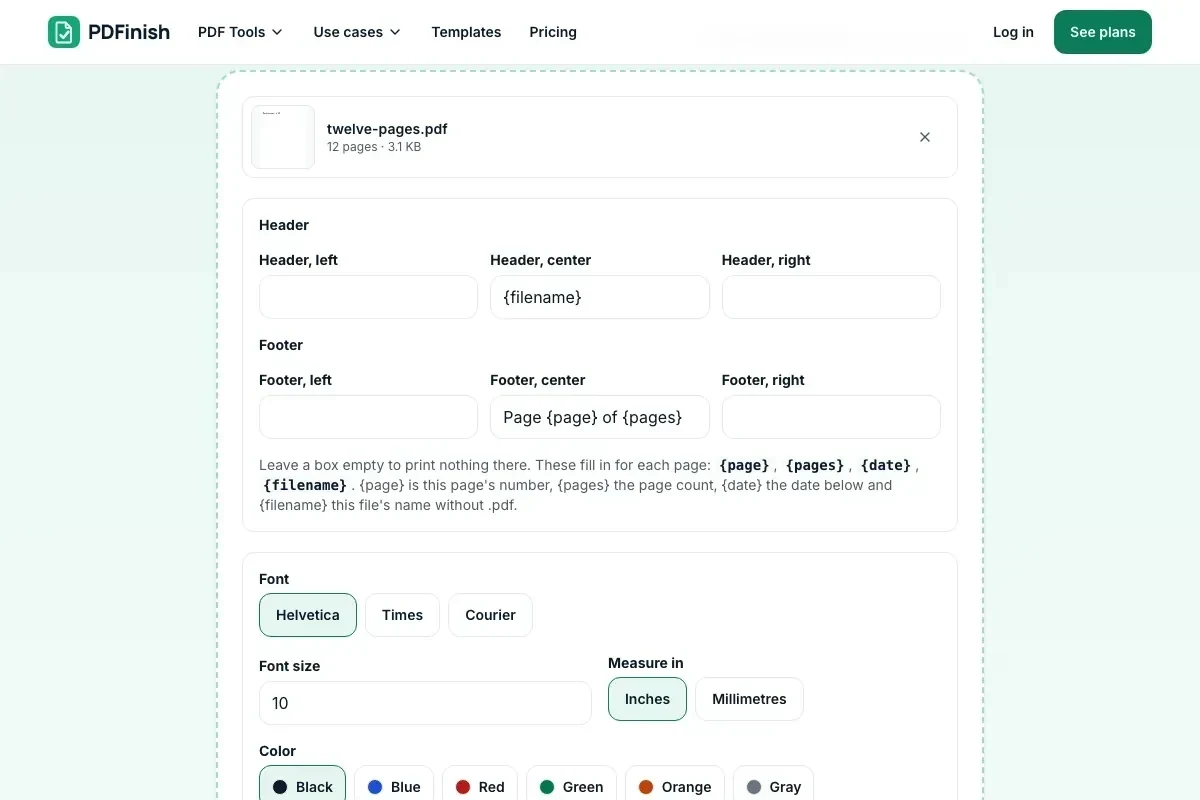
Three boxes for the header and three for the footer. Leave one empty to print nothing there.
Fills itself in
Use {page}, {pages}, {date} and {filename} where you want them.
Real preview
The preview shows the real result on one page, drawn by the same code that saves the file.
Font, size, color
Pick the font, size, color and how far from the edges.
Stays on your device
Your file is stamped in your browser.
Good to know
- Type {page}, {pages}, {date} or {filename} and it is filled in for each page.
- Latin, Greek and Cyrillic letters work. Chinese, Japanese, Korean, Arabic and Hebrew do not yet.
- Tick Skip the first page for a cover, or choose Only some pages.
Common questions
How do I add a header and footer to a PDF?
Add the file, type text in the header and footer boxes (left, center and right), choose the pages and press Add header and footer. The text is drawn on each page you chose and the new file downloads from the result screen. To add a header to a PDF without a footer, leave the footer boxes empty.
How do I put page numbers in the footer?
Type Page {page} of {pages} in a footer box. {page} becomes the number of each page and {pages} the total. If you only want page numbers with more choices, such as a start number, use Add Page Numbers to PDF.
Can I add the date and the file name?
Yes. Type {date} for a date and {filename} for the file's name without .pdf. The date is today's unless you pick another, and you choose how it is written: 10/26/2026, 26/10/2026 or October 26, 2026.
Can I leave the first page without a header or footer?
Yes. Tick Skip the first page, which is good for a cover. You can also choose Only some pages and type a range such as 2-5, 8-.
Can I change the font, size and color?
Yes. Choose Helvetica, Times or Courier, a size from 6 to 72, and one of the colors. You can also set how far the text sits from the page edges, in inches or millimetres. The text is printed on top of the page and does not move or remove anything, so if your pages have content near the edge, raise the distance and check the preview. Text in Greek or Cyrillic uses a font that has those letters.
Is my file uploaded when I use Add Header and Footer?
No. Your pages are stamped in your browser. The file is not sent to our servers.
Is Add Header and Footer free, and are there limits?
You can use it free. You get 2 free uses in total, no account needed. Free files can be up to 50 MB. Pro has no limit on uses and allows files up to 500 MB. We check the limits before a use starts, so a finished file is never held back.
Can I use Add Header and Footer on a Windows PC?
Yes. Open this page in Chrome or Edge on your PC, add your file and download the result. Nothing to install, and your file stays on your device.
More about this tool
How to add a header and footer to a PDF in 3 steps
To add a header and footer to a PDF, add the file, type the text for the left, center and right of the top and bottom, and use {page}, {pages}, {date} and {filename} where you want them filled in. Choose the pages, check the preview and save.
- 1
Add your PDF
Drop the document onto the tool, or choose it from your device. A preview of the first page you stamp appears once you add it.
- 2
Type your header and footer
Fill the left, center and right boxes of each. Use {page} for the page number, {pages} for the total, {date} for a date and {filename} for the file's name. Pick the font, size, color, how far from the edges, and which pages.
- 3
Check the preview and save
The preview shows the real result on one page, drawn by the same code that saves the file. Press Add header and footer to download the new PDF.
Key facts
- Privacy: We don't sell your data. This tool runs in your browser, so your files stay on your device and are never uploaded.
- Ads: none. No third-party ads and no ad cookies.
- Limits: 2 free uses in total, no account needed, and no limit on uses with Pro. Files up to 50 MB free, 500 MB with Pro. Limits are checked before a use starts, never after.
- Price: free to start. Pro is $2.99 a month or $24 a year. Lifetime is $50 for the first 500 founders. Pro cancels in one click.
- Works on: Windows, Mac, iPhone, Android. Nothing to install.
- Add a PDF header and footer with a left, center and right box for each. Leave a box empty to print nothing there.
- Type {page}, {pages}, {date} or {filename} and it is filled in for each page.
- Latin, Greek and Cyrillic letters work. Chinese, Japanese, Korean, Arabic and Hebrew do not yet.
Last updated:
By the PDFinish editorial team · Reviewed
Related toolsEdit
Add Page Numbers to PDF
Stamp page numbers onto every page of a PDF.
Add Watermark to PDF
Place text such as DRAFT or CONFIDENTIAL on pages.
PDF Editor
Change a line of text, or add text, shapes and images.
Merge PDF
Combine several PDFs into one file, in the order you choose.
Bates Numbering
Stamp Bates numbers on every page, with a log.