Scan paper to PDF
Photograph each page, drag the corners onto the paper, and download one PDF.
or drop them here. JPG, PNG, WebP or HEIC photos. Images up to 50 MB
Your file stays on your device. Nothing is uploaded unless you choose Email it to me.
- 2 free uses in total, no account needed
- No ads
- Nothing to install
How it works
1. Take or choose your photos
On a phone, press Take a photo for each page. On a computer, choose your photos.
2. Straighten and clean up each page
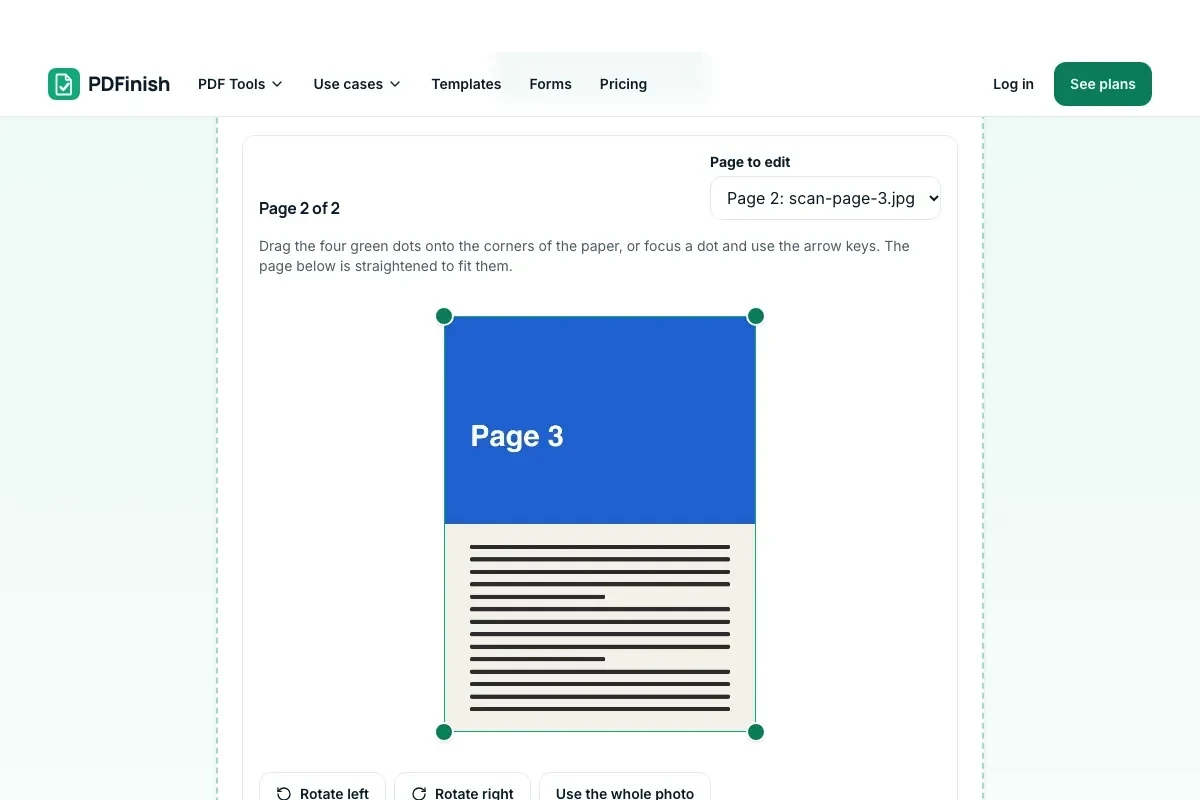
Drag the four corners onto the paper and choose Original, Grey or Black and white.
3. Download one PDF
Press Make PDF and download. Put the pages in order first.
What you can do in this tool
Straighten each page
The page inside your four corners is cut out and straightened, so a slanted photo becomes an upright page.
Three looks
Each page can be Original, Grey, or Black and white with a level you slide until the writing is clear.
Phone camera
On a phone, Take a photo opens your camera, and Take another photo adds the next page.
Make it searchable
Run OCR PDF on the result to make the words searchable. OCR reads English.
Stays on your device
Your pictures are converted in your browser. The file is not sent to our servers.
Reasonable size
Pages are saved at about 200 DPI on an A4 sheet, so a long scan stays a reasonable size.
Good to know
- On a phone, Take a photo opens your camera, and Take another photo adds the next page. On a computer, you choose photos you already have.
- The pages are saved as pictures, so the words cannot be searched or copied until you run OCR PDF on the result. OCR reads English.
- Pages are saved at about 200 DPI on an A4 sheet (a 2,400 pixel long side), so a long scan stays a reasonable size.
Common questions
How do I scan a document to PDF with my phone?
Open this page on your phone and press Take a photo. On a computer you choose photos you already have instead. Shoot each page, put them in order, then drag the four corners onto the paper, choose a look and press Make PDF. The photos never leave your phone, because the PDF is built in your browser.
How does the straightening work?
You drag four dots onto the corners of the paper. Everything outside them is cut away, and the page inside is stretched flat into a rectangle, which fixes a photo taken at an angle. It works best with the whole sheet in view and a plain background.
What is the difference between Original, Grey and Black and white?
Original keeps the photo as it is. Grey removes colour, which suits printing. Black and white turns every spot either black or white, which makes text sharp and the file small. A slider sets how dark a spot has to be to count as ink.
Can I search or copy the text in the scanned PDF?
Not yet. Each page is a picture. After you download, continue with OCR PDF to read the words and add a hidden text layer, so you can search and select them. OCR reads English.
Does Scan to PDF work on my phone?
Yes. It works in the browser on a phone or tablet. Take a photo opens your phone camera. If your browser asks to use the camera, allow it for this page only.
Is my file uploaded when I use Scan to PDF?
No. Your photos are straightened, cleaned up and combined in your browser. The file is not sent to our servers.
Is Scan to PDF free, and are there limits?
You can use it free. You get 2 free uses in total, no account needed. Free files can be up to 50 MB. Pro has no limit on uses and allows files up to 500 MB. We check the limits before a use starts, so a finished file is never held back.
Can I use Scan to PDF on a Windows PC?
Yes. Open this page in Chrome or Edge on your PC, add your file and download the result. Nothing to install, and your file stays on your device.
More about this tool
How to scan paper to PDF in 3 steps
To scan paper to PDF, take a photo of each page with your phone camera (or choose photos on a computer), drag the four corners onto the paper, pick a look, and download one PDF. Your photos stay on your device.
- 1
Take or choose your photos
On a phone, press Take a photo and shoot each page in turn, with the paper flat and the light even. On a computer, choose the photos of your pages. JPG, PNG, WebP and iPhone HEIC photos work.
- 2
Straighten and clean up each page
Pick a page, drag the four green dots onto the corners of the paper, turn it if it is sideways, and choose Original, Grey or Black and white. The preview shows how the page will come out. Put the pages in order.
- 3
Download one PDF
Press Make PDF, choose Fit to scan, A4 or US Letter if you like, and download. You can continue with OCR PDF to make the words searchable.
Key facts
- Privacy: We don't sell your data. This tool runs in your browser, so your files stay on your device and are never uploaded.
- Ads: none. No third-party ads and no ad cookies.
- Limits: 2 free uses in total, no account needed, and no limit on uses with Pro. Files up to 50 MB free, 500 MB with Pro. Limits are checked before a use starts, never after.
- Price: free to start. Pro is $2.99 a month or $24 a year. Lifetime is $50 for the first 500 founders. Pro cancels in one click.
- Works on: Windows, Mac, iPhone, Android. Nothing to install.
- On a phone, Take a photo opens your camera, and Take another photo adds the next page. On a computer, you choose photos you already have.
- You set four corners by hand on each photo. The page inside them is cut out and straightened, so a slanted photo of a sheet becomes an upright page. We do not find the edges for you.
- Each page can be Original, Grey, or Black and white with a level you slide until the writing is clear and the paper is clean.
- The pages are saved as pictures, so the words cannot be searched or copied until you run OCR PDF on the result. OCR reads English.
- Pages are saved at about 200 DPI on an A4 sheet (a 2,400 pixel long side), so a long scan stays a reasonable size.
Last updated:
By the PDFinish editorial team · Reviewed
Related toolsConvert
JPG to PDF
Turn photos and scans into a single PDF.
OCR PDF
Make scanned pages searchable and selectable.
TIFF to PDF
Turn TIFF scans into a PDF, every page included.
Compress PDF
Shrink a PDF so it is easier to email and upload.
Merge PDF
Combine several PDFs into one file, in the order you choose.
Grayscale PDF
Turn pages grey to print in black and white.
Crop PDF
Crop pages to a box you draw, or trim the white margins.
Image to Text
Pull the text out of a photo or screenshot.