Extract images from a PDF
See every picture inside the file and download the ones you want.
or drop it here. PDF files up to 50 MB
Your file stays on your device. Nothing is uploaded unless you choose Email it to me.
- 2 free uses in total, no account needed
- No ads
- Nothing to install
How it works
1. Add your PDF
Choose it from your device or drop it on the page.
2. Choose your pictures
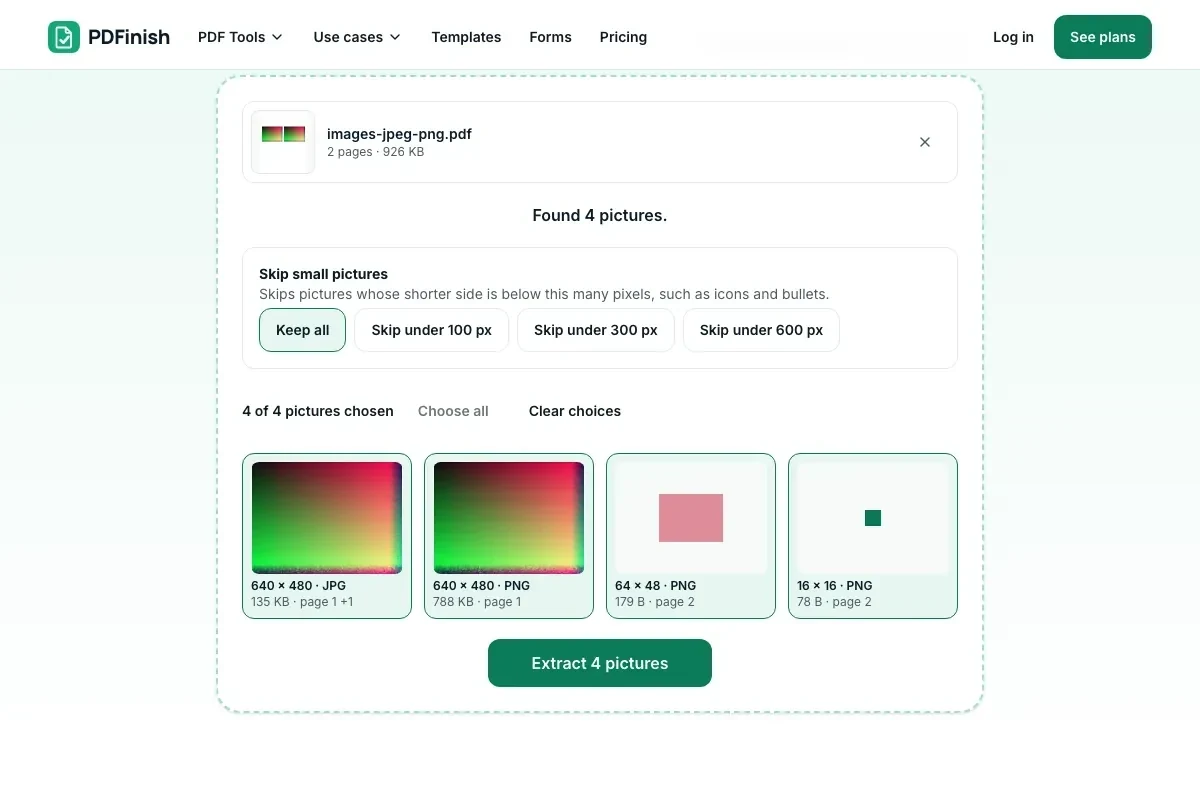
Every picture starts chosen. Untick the ones you do not want.
3. Download one or all
Save one picture, or several in a zip file.
What you can do in this tool
Original quality
JPEG pictures are saved as the exact bytes stored in the PDF.
PNG for the rest
Other pictures are saved as PNG with the same pixels, and transparency is kept.
Skip the small ones
Skip small pictures by size, such as icons and bullets.
One or all
One picture downloads as itself and several arrive in one zip.
Stays on your device
Your pictures are pulled out in your browser.
Good to know
- A picture used on several pages is listed once. You can skip small pictures such as icons and bullets.
Common questions
How do I extract images from a PDF?
Add the PDF and wait a moment while PDFinish lists its pictures. Choose the ones you want and press Extract. One picture downloads as a file, and several come in one zip.
Do the pictures keep their original quality?
Yes. A JPEG in the PDF is saved byte for byte, with no new compression. Other pictures are saved as PNG with the very same pixels. Nothing is shrunk or resampled.
Is this the same as saving each page as an image?
No. PDF to JPG draws whole pages, text and all, as pictures. Extract images pulls out the separate pictures placed on the pages, at the size they were stored.
Why are some pictures missing?
A few pictures are stored in formats we cannot read yet, such as JPEG 2000 or fax-style scans. The tool says how many it could not save. Pictures that are drawn as shapes, such as charts made of lines, are not pictures and are not listed.
Does it work on a scanned PDF?
Yes, but a scan holds each page as one big picture, so you get one picture per page. For the words on those pages, use OCR PDF.
Is my file uploaded when I use Extract Images from PDF?
No. The pictures are found and saved in your browser. The file is not sent to our servers.
Is Extract Images from PDF free, and are there limits?
You can use it free. You get 2 free uses in total, no account needed. Free files can be up to 50 MB. Pro has no limit on uses and allows files up to 500 MB. We check the limits before a use starts, so a finished file is never held back.
Can I use Extract Images on a Windows PC?
Yes. Open this page in Chrome or Edge on your PC, add your file and download the result. Nothing to install, and your file stays on your device.
More about this tool
How to extract images from a PDF in 3 steps
To extract images from a PDF, add the file and PDFinish lists every picture on its pages. Choose the ones you want and download one, or all in a zip, with JPEGs saved exactly as stored and nothing uploaded.
- 1
Add your PDF
Drop the document onto the tool, or choose it from your device. PDFinish looks through every page and shows what it finds.
- 2
Choose your pictures
Every picture starts chosen. Untick the ones you do not want, or skip small ones by size, such as icons and bullets.
- 3
Download one or all
One chosen picture downloads as itself. Several arrive together in one zip file.
Key facts
- Privacy: We don't sell your data. This tool runs in your browser, so your files stay on your device and are never uploaded.
- Ads: none. No third-party ads and no ad cookies.
- Limits: 2 free uses in total, no account needed, and no limit on uses with Pro. Files up to 50 MB free, 500 MB with Pro. Limits are checked before a use starts, never after.
- Price: free to start. Pro is $2.99 a month or $24 a year. Lifetime is $50 for the first 500 founders. Pro cancels in one click.
- Works on: Windows, Mac, iPhone, Android. Nothing to install.
- JPEG pictures are saved as the exact bytes stored in the PDF, so there is no extra loss in quality.
- Other pictures are saved as PNG with the same pixels, and transparency is kept.
- A picture used on several pages is listed once. You can skip small pictures such as icons and bullets.
Last updated:
By the PDFinish editorial team · Reviewed
Related toolsConvert
PDF to JPG
Save each PDF page as a JPG image.
PDF to PNG
Save each PDF page as a sharp PNG image.
JPG to PDF
Turn photos and scans into a single PDF.
Compress PDF
Shrink a PDF so it is easier to email and upload.
PDF to Text
Pull the text out of a PDF to copy or save as .txt.
PDF to TIFF
Save PDF pages as one TIFF, or a TIFF per page.