PDF compare: compare two PDF files
Add the older and the newer PDF to see every word that changed.
or drop them here. PDF files up to 50 MB
Your file stays on your device. Nothing is uploaded unless you choose Email it to me.
- 2 free uses in total, no account needed
- No ads
- Nothing to install
How it works
1. Add both versions
Choose the older and the newer PDF together, or add them one at a time.
2. See what changed
Read the summary, then scroll the two sides together. Click a change in the list to jump to it.
3. Download the redline
Press Download redline PDF to save your revised file with the changes marked, and the change report with it.
What you can do in this tool
Word by word
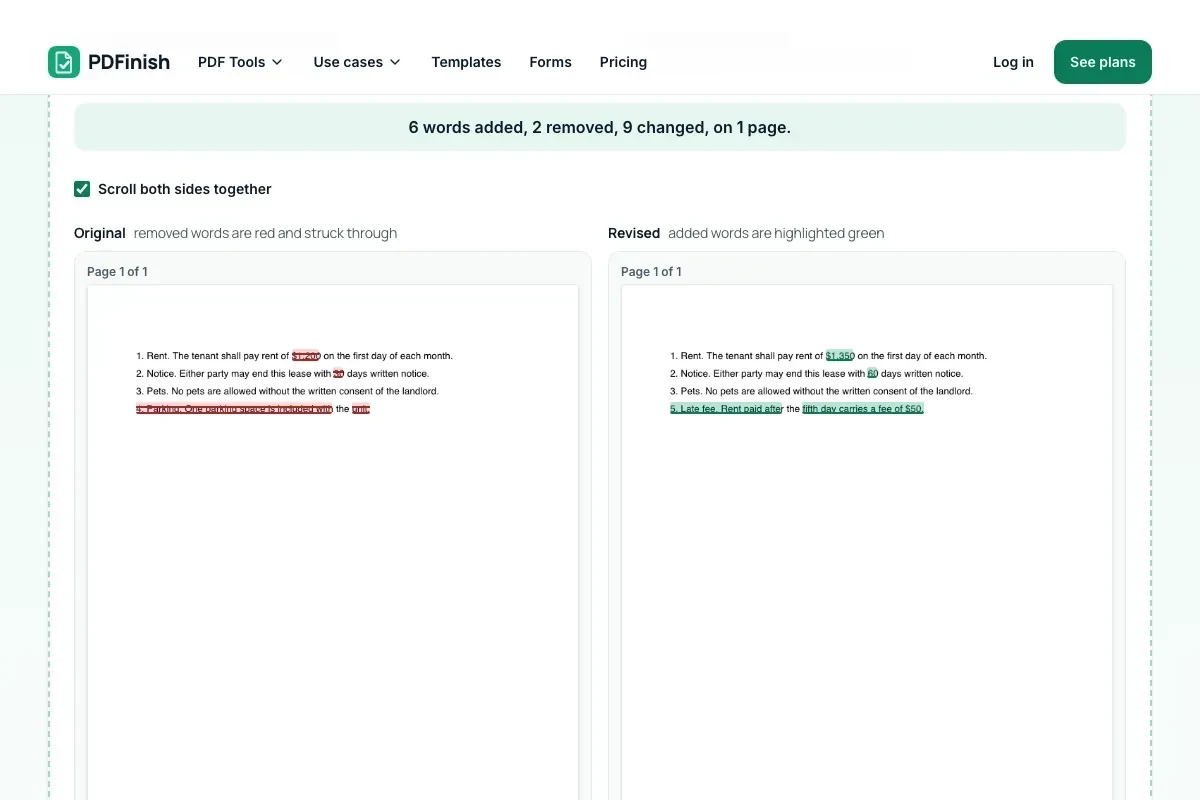
Removed words are red and struck through on the Original, and added words are highlighted on the Revised.
A list of changes
The summary counts words added, removed and changed, and the pages they are on. Click one to jump to it.
Redline and report
Download your revised file with the changes marked as PDF annotations, plus a short change report that lists each one.
Stays on your device
Both files are opened and compared in your browser. Nothing is sent to our servers.
Originals stay as they are
The redline is a new file named after your revised one. Your two files are not changed.
Works on any device
Runs in your browser on Windows, Mac, iPhone, Android or a Chromebook. Nothing to install.
Good to know
- It compares the words, not the line breaks. Text that only moved to a new line or has extra spaces is not reported as a change.
- Only the text is compared, not pictures, fonts or layout. A scanned PDF has no text, so run it through OCR PDF first.
- To compare Word files, turn each into a PDF with Word to PDF first.
- Looking at the comparison is free and does not use up a free use. Downloading the redline and report counts as one use.
Common questions
How do I compare two PDF files online for free?
Add the older file as Original and the newer file as Revised. The comparison appears as soon as both are read, with the added, removed and changed words marked on each side and listed with their page numbers. Looking at it is free; downloading the redline PDF counts as one use.
What is a redline?
A redline is a copy of a document that shows what changed between two versions, the way a lawyer marks up a contract: deletions struck through, additions highlighted. Our redline PDF is your revised file with the additions highlighted and a note where words were removed or changed.
What does it compare?
The text, word by word, across the whole document. It ignores line breaks, repeated spaces and words hyphenated at the end of a line, so a document that was only reflowed shows no changes. It does not compare pictures, drawings, fonts or layout. If a sentence moved, it shows as removed in one place and added in the other.
Can I compare Word files?
Yes, after you turn them into PDFs. Use Word to PDF on each file, then add the two PDFs here. PDF Compare works on PDF files only.
Is my file uploaded when I use PDF Compare?
No. Both files are opened and compared in your browser, and the redline and report are made there too. The file is not sent to our servers.
Why does it say my PDF has no text?
A scanned PDF is made of pictures of pages, so there are no words to compare. Run it through OCR PDF, which makes the words searchable, and compare the new file.
Is PDF Compare free, and are there limits?
You can use it free. You get 2 free uses in total, no account needed. Free files can be up to 50 MB. Pro has no limit on uses and allows files up to 500 MB. We check the limits before a use starts, so a finished file is never held back.
Can I use PDF Compare on a Windows PC?
Yes. Open this page in Chrome or Edge on your PC, add your file and download the result. Nothing to install, and your file stays on your device.
More about this tool
How to compare two PDF files in 3 steps
To compare two PDF files, add the older version as Original and the newer one as Revised, and PDFinish shows every word added, removed or changed, side by side. Then download a redline PDF and a change report; nothing is uploaded.
- 1
Add both versions
Drop the older file on Original and the newer file on Revised, or choose them from your device. The text of each is read in your browser.
- 2
See what changed
Read the summary, then scroll the two sides together. Removed words are red and struck through on the Original, added words are highlighted on the Revised. Click a change in the list to jump to it.
- 3
Download the redline
Press Download redline PDF to save your revised file with the changes marked, and the change report with it. Send them to the other person, or add your own comments with PDF Annotator.
Key facts
- Privacy: We don't sell your data. This tool runs in your browser, so your files stay on your device and are never uploaded.
- Ads: none. No third-party ads and no ad cookies.
- Limits: 2 free uses in total, no account needed, and no limit on uses with Pro. Files up to 50 MB free, 500 MB with Pro. Limits are checked before a use starts, never after.
- Price: free to start. Pro is $2.99 a month or $24 a year. Lifetime is $50 for the first 500 founders. Pro cancels in one click.
- Works on: Windows, Mac, iPhone, Android. Nothing to install.
- Use it as a free PDF compare tool or to make a redline PDF: removed words are red and struck through, added words are highlighted, and a list of changes jumps to each one.
- It compares the words, not the line breaks. Text that only moved to a new line, was hyphenated at the end of a line or has extra spaces is not reported as a change.
- The summary counts words added, removed and changed, and the pages they are on. You can ignore upper and lower case and punctuation.
- The redline PDF is your revised file with the changes as standard PDF annotations, named after it with -redline.pdf. The change report is a short PDF that lists every change with its page.
- Only the text is compared, not pictures, fonts or layout. A scanned PDF has no text, so run it through OCR PDF first. To compare Word files, turn each into a PDF with Word to PDF first.
- Looking at the comparison is free and does not use up a free use. Downloading the redline and report counts as one use.
Last updated:
By the PDFinish editorial team · Reviewed
Related toolsEdit
PDF Annotator
Highlight text, add comments, notes and drawings to a PDF.
PDF Reader
Open and read a PDF in your browser. Nothing is uploaded.
Sign PDF
Draw or type your signature and place it on the page.
OCR PDF
Make scanned pages searchable and selectable.
PDF to Text
Pull the text out of a PDF to copy or save as .txt.