Add bookmarks to a PDF
Add titles that jump to a page, then save the new PDF.
or drop it here. PDF files up to 50 MB
Your file stays on your device. Nothing is uploaded unless you choose Email it to me.
- 2 free uses in total, no account needed
- No ads
- Nothing to install
How it works
1. Add your PDF
Choose it from your device or drop it on the page.
2. Build the list
Add a bookmark, type a title and pick its page.
3. Save the new PDF
Save the new PDF and look for the bookmarks panel.
What you can do in this tool
Build your list
Press Add a bookmark, type a title and pick the page it jumps to.
Nest and reorder
Indent a bookmark under the one above it, up to eight levels. Drag or use the buttons.
Suggest from headings
Start from the lines set larger than the body text, tick the ones you want and rename them.
Undo
Undo steps back through your changes.
Stays on your device
Your file is changed in your browser.
Good to know
- Bookmarks the file already has are listed and kept. You can rename, move or delete them.
- Suggest from headings needs real text, so a scan gives no suggestions.
- The pages, text, pictures and form fields are not changed.
Common questions
How do I add bookmarks to a PDF for free?
Add the file, press Add a bookmark, type a title and choose the page it should jump to. Repeat for each bookmark, then press Save bookmarks and download the new PDF. Your PDF is never uploaded.
How do I make a bookmark sit under another one?
Press the indent button on the bookmark. It moves one level in and becomes a child of the bookmark above it. Press outdent to bring it back out. Its own sub-bookmarks move with it.
Can I create bookmarks from the headings in my PDF?
Yes. Press Suggest from headings and PDFinish lists the lines that are set larger than the body text, with their page. Untick any that are not headings, and add the rest to your list. Running headers repeated on many pages are left out. A scanned file has no text to read, so it gives no suggestions.
Will my existing bookmarks be kept?
Yes. They are shown in the list and saved again, with the same place on the page, unless you delete or change them. Bookmarks that open a web address are kept as they are.
Does Add Bookmarks to PDF work on my phone?
Yes. It works in the browser on a phone or tablet. Use the buttons on each bookmark to move and indent it, and Pick page to choose a page from thumbnails.
Is my file uploaded when I use Add Bookmarks to PDF?
No. The bookmarks are written into the PDF in your browser. The file is not sent to our servers.
Is Add Bookmarks to PDF free, and are there limits?
You can use it free. You get 2 free uses in total, no account needed. Free files can be up to 50 MB. Pro has no limit on uses and allows files up to 500 MB. We check the limits before a use starts, so a finished file is never held back.
Can I use Add Bookmarks to PDF on a Windows PC?
Yes. Open this page in Chrome or Edge on your PC, add your file and download the result. Nothing to install, and your file stays on your device.
More about this tool
How to add bookmarks to a PDF in 3 steps
To add bookmarks to a PDF, add the file, press Add a bookmark, type a title and pick the page it jumps to, then save. You can nest and reorder them or start from the document's headings, and your file stays on your device.
- 1
Add your PDF
Drop the document onto the tool, or choose it from your device. Any bookmarks the file already has appear in the list.
- 2
Build the list
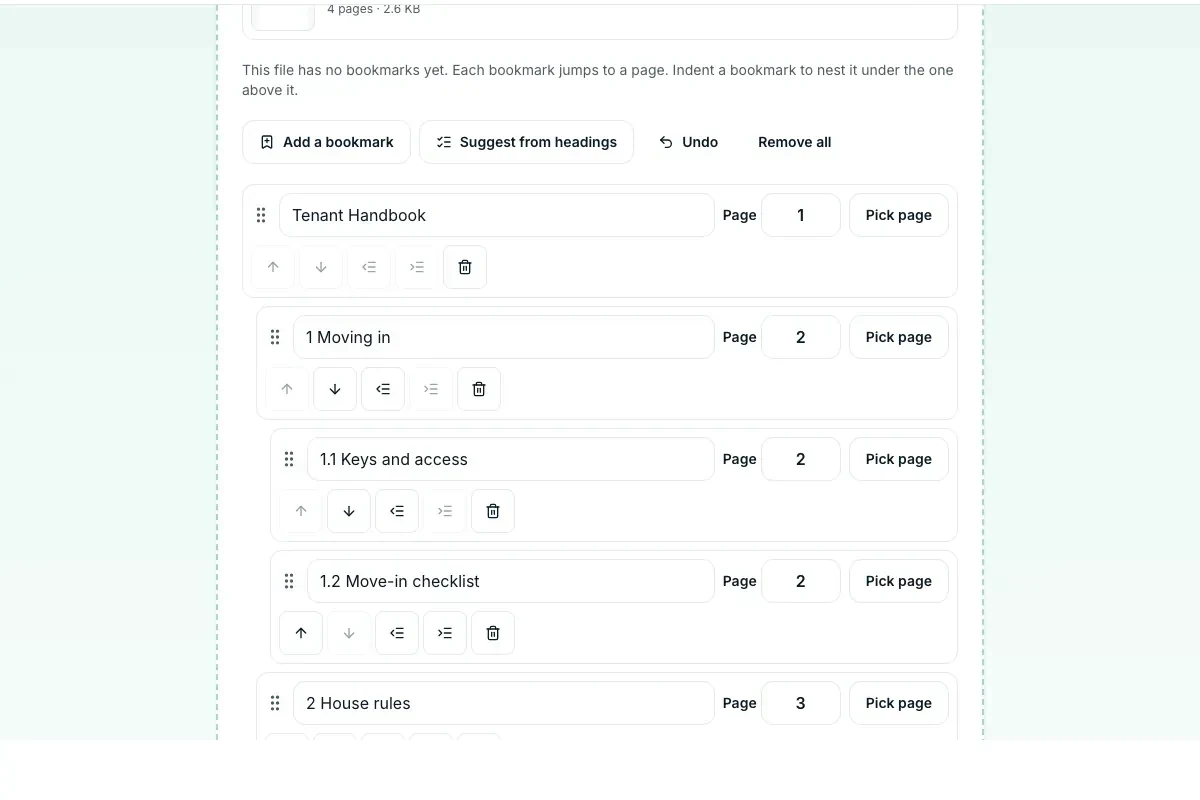
Press Add a bookmark, type a title, then type a page number or press Pick page to choose from thumbnails. Use the arrow and indent buttons to order and nest them, or press Suggest from headings to start from the document's own headings.
- 3
Save the new PDF
Press Save bookmarks and download the file. Open it in a PDF reader and look for the bookmarks panel.
Key facts
- Privacy: We don't sell your data. This tool runs in your browser, so your files stay on your device and are never uploaded.
- Ads: none. No third-party ads and no ad cookies.
- Limits: 2 free uses in total, no account needed, and no limit on uses with Pro. Files up to 50 MB free, 500 MB with Pro. Limits are checked before a use starts, never after.
- Price: free to start. Pro is $2.99 a month or $24 a year. Lifetime is $50 for the first 500 founders. Pro cancels in one click.
- Works on: Windows, Mac, iPhone, Android. Nothing to install.
- A bookmark is a title that jumps to a page. Readers show PDF bookmarks in a panel at the side, sometimes called the PDF outline, so a long report, lease or manual is easy to move around in.
- Bookmarks the file already has are listed and kept. You can rename, move or delete them, and the ones you leave alone keep their exact place on the page.
- Indent a bookmark to nest it under the one above it, up to eight levels. Moving, indenting or deleting a bookmark takes the ones nested under it along.
- Suggest from headings reads the text and proposes a bookmark for each line set larger than the body text. It is a starting point: you tick the ones you want, and you can rename them. It needs real text, so a scan gives no suggestions.
- Each bookmark can be moved by dragging, or with the up, down, indent and outdent buttons, so it works with a keyboard or a finger. Undo steps back through your changes.
- The pages, text, pictures and form fields are not changed, and bookmarks you delete or rename do not stay behind in the file as hidden copies.
- Most readers show bookmarks in a side panel. The file opens with that panel showing in readers that support it, unless the file already said how it should open.
Last updated:
By the PDFinish editorial team · Reviewed
Background
Bookmarks are one of the standard parts of the format. Read about PDF versions and standards for the full story.
Related toolsOrganize
Organize PDF
Drag page thumbnails to reorder, rotate or remove pages.
Merge PDF
Combine several PDFs into one file, in the order you choose.
Split PDF
Split a PDF by page ranges, or save each page.
Add Page Numbers to PDF
Stamp page numbers onto every page of a PDF.
PDF Reader
Open and read a PDF in your browser. Nothing is uploaded.
Compress PDF
Shrink a PDF so it is easier to email and upload.
PDF Metadata Editor
Change the title, author and keywords inside a PDF.