Flatten a PDF
Lock form fields and comments into the page, or make every page an image.
or drop it here. PDF files up to 50 MB
Your file stays on your device. Nothing is uploaded unless you choose Email it to me.
- 2 free uses in total, no account needed
- No ads
- Nothing to install
How it works
1. Add your PDF
Choose it from your device or drop it on the page.
2. Pick how to flatten
Pick Lock fields and comments, or Make every page an image.
3. Save the flattened copy
Save the flattened copy.
What you can do in this tool
Lock fields and comments
Typed answers and comments become part of the page. The text stays selectable and searchable.
Every page an image
Turn each page into a picture at 150, 200 or 300 DPI, so it looks the same everywhere.
Links stay clickable
With Lock fields and comments, links keep working. The image mode does not keep them.
Original untouched
Your original file is never changed. You save the flattened copy as a new file.
Forms, markup and scans
Filled forms, marked-up files and scans all work.
Good to know
- Your original file is never changed.
- A digital signature does not survive flattening. Flatten a copy and keep the signed original.
- It is not a password lock. Someone with a PDF editor can still add to or cover the page.
Common questions
How do I flatten a PDF?
Add the file, leave Lock fields and comments selected, and press Flatten PDF. The form answers and comments are drawn into the pages and the fields are removed. The new file downloads from the result screen.
What does it mean to flatten a PDF?
A flattened PDF has its layers merged into one. Form fields stop being boxes you can type in, and comments, highlights and stamps stop being separate objects. They become part of the page itself, so they show the same everywhere and cannot be edited. A few comments have no picture stored in the file, such as some highlights from other programs; we cannot draw those, so we remove them and tell you how many.
Can I still select and copy the text after flattening?
With Lock fields and comments, yes. The page text, and the typed answers from your form, stay as real text you can select, copy and search. With Make every page an image, no: each page is a picture, so you cannot select or search it. Run OCR PDF afterwards to get searchable text back.
How do I stop people from editing a filled-in PDF form?
Flatten it with Lock fields and comments. The answers become part of the page and the fields are gone, so there is nothing left to type into. It is not a password lock. Someone with a PDF editor can still add to or cover the page, so use Password Protect PDF as well if that matters.
Does flattening keep links and a digital signature?
Lock fields and comments keeps links clickable. Make every page an image does not. Neither keeps a digital signature, because the signature covers the exact bytes of the original file and any change breaks it. Flatten a copy and keep the signed original.
Is my file uploaded when I use Flatten PDF?
No. Your pages are flattened in your browser. The file is not sent to our servers.
Is Flatten PDF free, and are there limits?
You can use it free. You get 2 free uses in total, no account needed. Free files can be up to 50 MB. Pro has no limit on uses and allows files up to 500 MB. We check the limits before a use starts, so a finished file is never held back.
Can I use Flatten PDF on a Windows PC?
Yes. Open this page in Chrome or Edge on your PC, add your file and download the result. Nothing to install, and your file stays on your device.
More about this tool
How to flatten a PDF in 3 steps
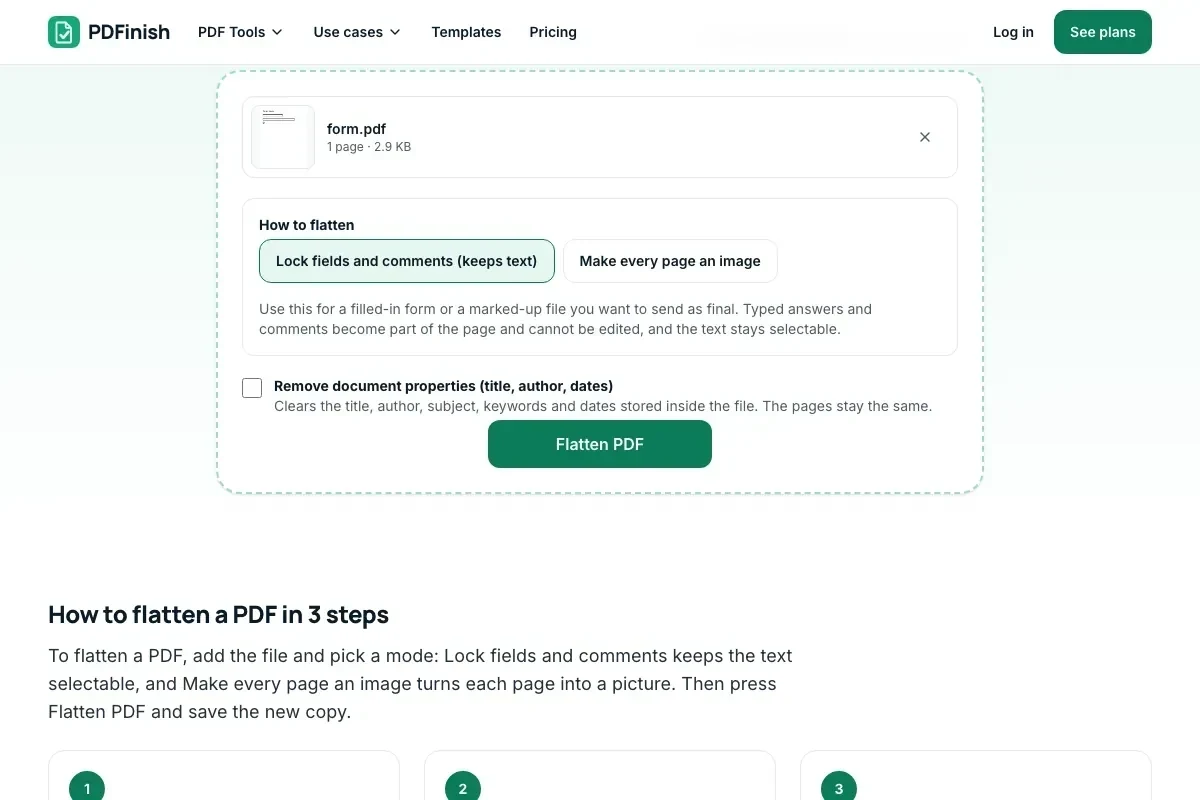
To flatten a PDF, add the file and pick a mode: Lock fields and comments keeps the text selectable, and Make every page an image turns each page into a picture. Then press Flatten PDF and save the new copy.
- 1
Add your PDF
Drop the document onto the tool, or choose it from your device. Filled forms, marked-up files and scans all work.
- 2
Pick how to flatten
Lock fields and comments is for forms and markup you want to send as final, with the text still selectable. Make every page an image is for when the file must look the same everywhere. Choose the picture quality if you pick the image mode.
- 3
Save the flattened copy
Press Flatten PDF and download the new file. We tell you how many fields and comments were locked.
Key facts
- Privacy: We don't sell your data. This tool runs in your browser, so your files stay on your device and are never uploaded.
- Ads: none. No third-party ads and no ad cookies.
- Limits: 2 free uses in total, no account needed, and no limit on uses with Pro. Files up to 50 MB free, 500 MB with Pro. Limits are checked before a use starts, never after.
- Price: free to start. Pro is $2.99 a month or $24 a year. Lifetime is $50 for the first 500 founders. Pro cancels in one click.
- Works on: Windows, Mac, iPhone, Android. Nothing to install.
- Lock fields and comments keeps the text selectable and searchable. Typed answers and comments become part of the page and can no longer be edited.
- Make every page an image turns each page into a picture at 150, 200 or 300 DPI. Text can no longer be selected or searched, and the file can be larger.
- Your original file is never changed. A digital signature does not survive flattening.
Last updated:
By the PDFinish editorial team · Reviewed
Background
Flattening merges form answers and marks into the page. For the bigger picture, read what a PDF is.
Related toolsEdit
Fill PDF
Fill any PDF form: type, tick, sign and date.
Create Fillable PDF
Turn a PDF into a form with fields you can fill.
Sign PDF
Draw or type your signature and place it on the page.
Password Protect PDF
Add a password so only people you trust can open the file.
Redact PDF
Black out words or areas and remove them for good.
Compress PDF
Shrink a PDF so it is easier to email and upload.
Finish PDF
Fill, sign, lock and shrink a PDF in one guided flow, then save it.
Grayscale PDF
Turn pages grey to print in black and white.
Remove Metadata from PDF
Wipe the author, dates and XMP from a PDF.