Convert SVG to PDF
Add an SVG, choose the page, and download the PDF.
or drop it here. .svg files. SVG files up to 50 MB
Your file stays on your device. Nothing is uploaded unless you choose Email it to me.
- 2 free uses in total, no account needed
- No ads
- Nothing to install
How it works
1. Add your SVG
Choose a .svg file from your device or drop it on the page.
2. Choose the page
Pick Fit to the picture, A4 or US Letter, and a white or see-through background.
3. Download your PDF
Save the PDF. Zoom in as far as you like: lines and letters stay crisp.
What you can do in this tool
Real vectors
Shapes, paths, curves and text are drawn as real PDF vectors, so they stay sharp when you zoom or print.
Page to fit
Fit to the picture makes the page exactly the size of the drawing, or place it, centred, on A4 or US Letter.
Tells you what is skipped
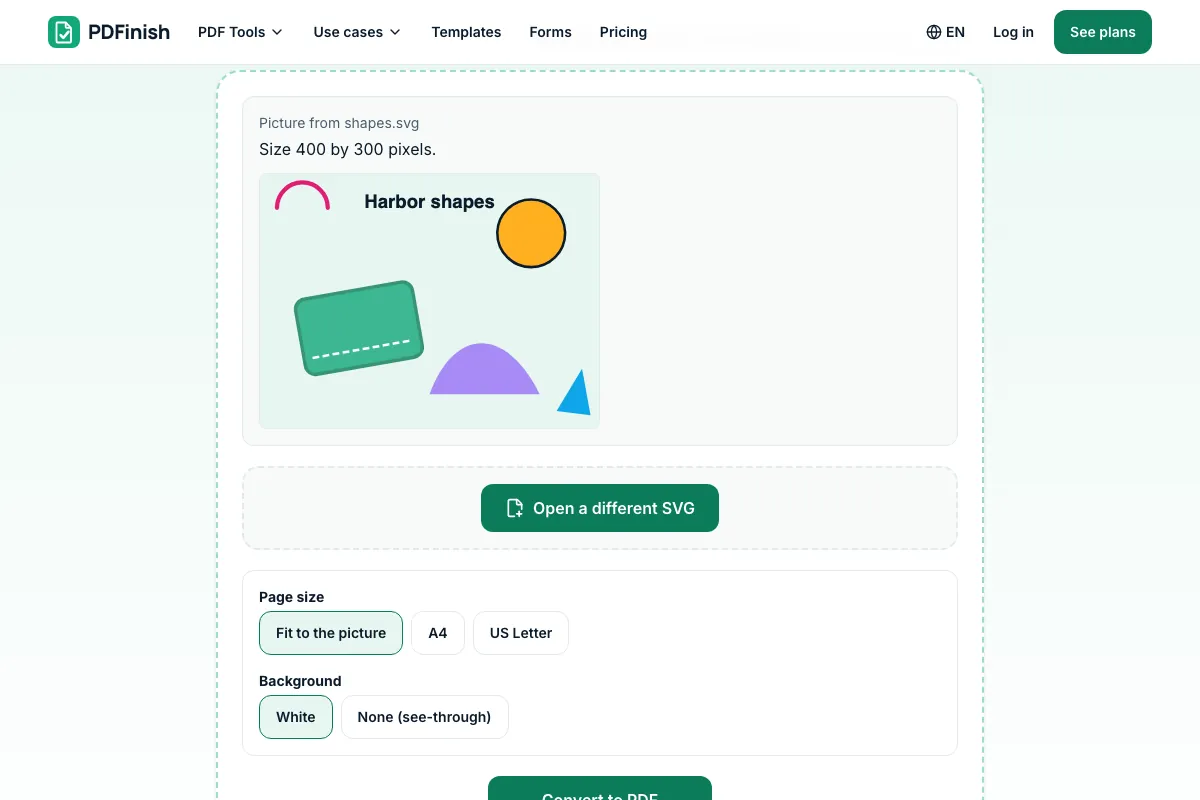
You see a preview, its size, and a note about anything that will be skipped.
Stays on your device
Your pictures are converted in your browser. The file is not sent to our servers.
Works on any device
Runs in your browser on Windows, Mac, iPhone, Android or a Chromebook. Nothing to install.
Good to know
- Scripts in the file never run, and links to other files or web addresses are never loaded.
- Gradients are drawn as one average colour. Clip paths, masks, filters, patterns and markers are skipped, and the tool tells you which. Pictures built into the file as PNG or JPEG are kept.
Common questions
How do I convert an SVG to PDF?
Add the .svg file to the tool. It shows a preview, the size, and anything that will be skipped. Choose the page size and background, then press Convert to PDF. The file downloads from the result screen. The conversion happens in your browser.
Does the PDF keep the vectors?
Yes. Shapes, paths and text are written into the PDF as drawing instructions, not as a picture, so they stay sharp at any zoom and print cleanly. Only pictures that were built into the SVG as PNG or JPEG stay as pictures, as they were in your file.
What is not supported?
Gradients are drawn as one average colour. Clip paths, masks, filters, patterns, markers and embedded web content are skipped, and so are text characters we cannot draw yet, such as Chinese or emoji. The tool lists what it skipped before and after converting.
Do scripts or links in the SVG run?
No. The file is read as text and never opened as a live page, so scripts and event handlers cannot run. Links to other files and web addresses are not loaded, so nothing is fetched and nothing can report that you opened it. The tool tells you when it ignored one.
What size will the PDF page be?
With Fit to the picture, the page matches the SVG's width and height, counting 96 pixels to the inch, up to a large poster size. With A4 or US Letter, the picture is scaled to fit inside the margins and centred, in portrait or landscape to suit its shape.
Is my file uploaded when I use SVG to PDF?
No. Your SVG is read and saved as a PDF in your browser. The file is not sent to our servers.
Is SVG to PDF free, and are there limits?
You can use it free. You get 2 free uses in total, no account needed. Free files can be up to 50 MB. Pro has no limit on uses and allows files up to 500 MB. We check the limits before a use starts, so a finished file is never held back.
Can I use SVG to PDF on a Windows PC?
Yes. Open this page in Chrome or Edge on your PC, add your file and download the result. Nothing to install, and your file stays on your device.
More about this tool
How to convert an SVG to PDF in 3 steps
To convert SVG to PDF, add your .svg file, check the size and any warnings shown, choose a page size and background, and download the PDF. The shapes and text stay as sharp vectors, and the file is read in your browser, so it is not uploaded and no script in it runs.
- 1
Add your SVG
Drop a .svg file onto the tool, or choose one from your device. You see a preview, its size, and a note about anything that will be skipped.
- 2
Choose the page
Fit to the picture makes the page exactly the size of the drawing. Or place it, centred, on A4 or US Letter. Pick a white background or leave it see-through.
- 3
Download your PDF
Save the finished file. Zoom in as far as you like: lines and letters stay crisp.
How do I save an SVG as a PDF?
Add the .svg file to SVG to PDF, choose the page size, and press Convert to PDF. You get a PDF where the shapes and text stay as sharp vectors. The file is read in your browser and is not sent to our servers, and any script inside it never runs.
How do I convert an SVG to a vector PDF?
Use SVG to PDF. It draws the paths, shapes and text of your SVG into the PDF as vector instructions, rather than taking a screenshot of them. That keeps edges crisp at any zoom, and a design program can open the result and edit the shapes.
Why is my SVG blurry in a PDF?
Blur usually means the SVG was turned into a picture first. SVG to PDF keeps lines, curves and text as vectors, so they stay sharp at any zoom or print size. Only a picture that was embedded inside the SVG as PNG or JPEG keeps its own resolution.
Is it safe to open an SVG from the internet?
SVG files can hold scripts, and some browsers run them. SVG to PDF never does: it reads the file as plain text and draws only the shapes. Scripts, event handlers and links to outside files are ignored, and the tool tells you when it ignored any.
Can I convert an SVG with text to PDF?
Yes. Text is drawn with standard PDF fonts, picked from the SVG's font-family as sans-serif, serif or monospace, with its size, weight, colour and alignment. Latin, Greek and Cyrillic letters work. Exotic fonts are replaced by the closest standard one, and Chinese, Japanese and emoji are skipped.
Can I convert SVG to PDF for free?
Yes. You get 2 free uses in total with no account, and one finished conversion counts as one use. Free files can be up to 50 MB each. Pro has no limit on uses and allows files up to 500 MB. The limit is checked before you start.
Can I convert an SVG to PDF and keep a see-through background?
Yes. Under Background, choose None, and the page has no fill behind the drawing, so whatever you place the PDF on shows through. Choose White for a solid white page, which prints and previews the same everywhere. Fit to the picture and A4 or US Letter both work either way.
What if my picture is a PNG or JPG instead?
Use PNG to PDF or JPG to PDF for photos and other pictures made of pixels. They run in your browser too. SVG to PDF is for drawings made of shapes and text. To put several pictures on separate pages, try Image to PDF.
How do I put several SVGs in one PDF?
Convert each SVG on its own, then join the PDFs with Merge PDF, which also runs in your browser. Each drawing becomes its own page, at the size you chose. Afterwards you can number the pages with Add Page Numbers or shrink the file with Compress PDF.
Can I make an SVG smaller or print-ready as a PDF?
A PDF made by SVG to PDF is usually small, because shapes and text are stored as short drawing instructions rather than pixels. Choose A4 or US Letter to print it on a standard page, or Fit to the picture for a page that matches the drawing exactly.
Key facts
- Privacy: We don't sell your data. This tool runs in your browser, so your files stay on your device and are never uploaded.
- Ads: none. No third-party ads and no ad cookies.
- Limits: 2 free uses in total, no account needed, and no limit on uses with Pro. Files up to 50 MB free, 500 MB with Pro. Limits are checked before a use starts, never after.
- Price: free to start. Pro is $2.99 a month or $24 a year. Lifetime is $50 for the first 500 founders. Pro cancels in one click.
- Works on: Windows, Mac, iPhone, Android. Nothing to install.
- Your SVG is read and drawn in your browser. Nothing is uploaded. Scripts in the file never run, and links to other files or web addresses are never loaded.
- Shapes, paths, curves, text, groups, transforms, colours, strokes, dashes, opacity and simple CSS are drawn as real PDF vectors, so they stay sharp when you zoom or print. They are not turned into a picture.
- Gradients are drawn as one average colour. Clip paths, masks, filters, patterns and markers are skipped, and the tool tells you which. Pictures built into the file as PNG or JPEG are kept.
Last updated:
By the PDFinish editorial team · Reviewed
Related toolsConvert
Image to PDF
Turn JPG, PNG, WebP, HEIC and more into a PDF.
PNG to PDF
Turn PNG images and screenshots into a single PDF.
HTML to PDF
Turn an HTML file, a zip, or pasted HTML into a PDF.
JPG to PDF
Turn photos and scans into a single PDF.
Compress PDF
Shrink a PDF so it is easier to email and upload.
XML to PDF
Turn an XML file into a readable, indented PDF.