Convert HEIC to PDF
Add your iPhone photos, put them in order, and download one PDF.
or drop them here. HEIC, JPG, PNG, WebP, GIF, BMP or TIFF. Images up to 50 MB
Your file stays on your device. Nothing is uploaded unless you choose Email it to me.
- 2 free uses in total, no account needed
- No ads
- Nothing to install
How it works
1. Add your HEIC photos
Choose your photos from your device or drop them on the page.
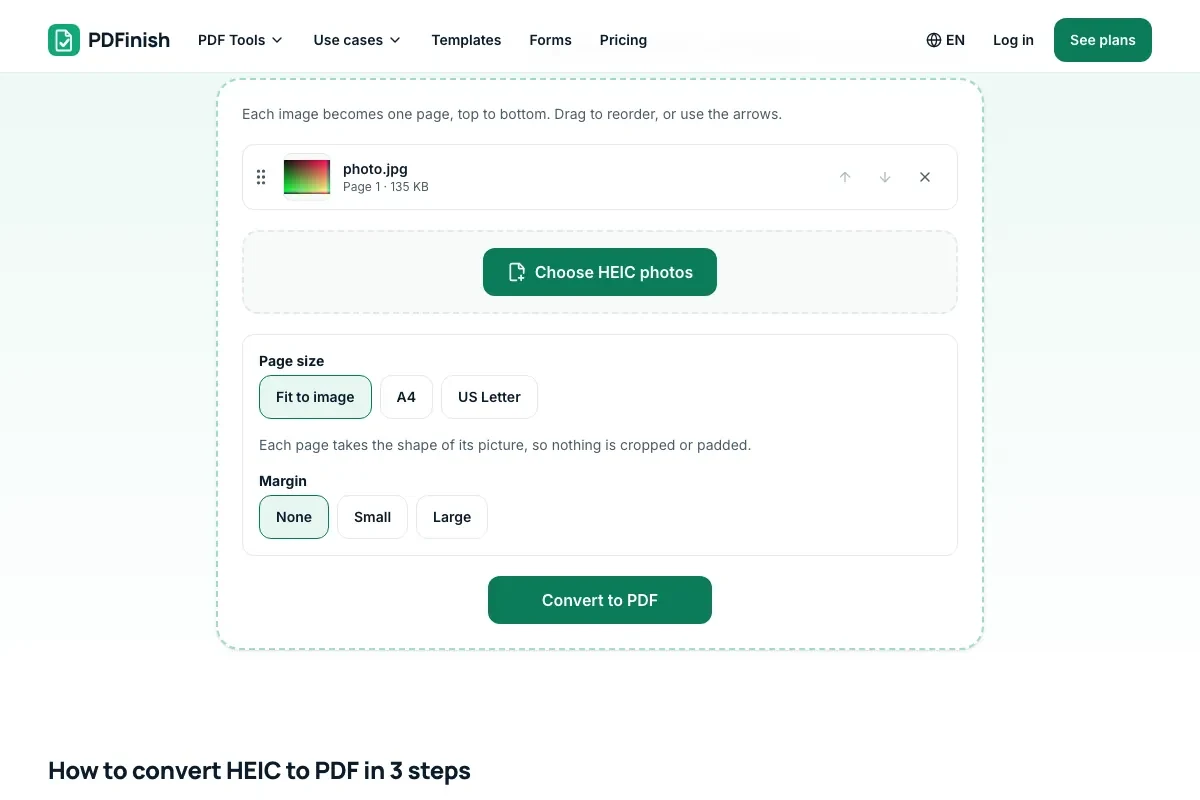
2. Order them and pick a page size
Move them into order and pick a page size.
3. Download your PDF
Save the PDF. Each photo becomes one page.
What you can do in this tool
Photos straight off your iPhone
HEIC photos are opened on your device and saved in the PDF as high-quality JPEG.
Right way up
Photo orientation is respected.
Checks your browser first
This page tests your browser with a small sample photo and says so before you pick a file if it cannot read HEIC.
Pick a page size
Fit each page to its picture, or use A4 or US Letter with a margin you choose.
Stays on your device
Your pictures are converted in your browser. The file is not sent to our servers.
Good to know
- HEIC photos are opened by your browser on your device and saved in the PDF as high-quality JPEG. Photo orientation is respected.
- Not every browser can open HEIC. This page checks yours with a small sample photo when it loads, and says so before you pick a file.
- On an iPhone or iPad, any browser can open them. If your browser cannot read HEIC, save the photos as JPG first. JPG and PNG pictures work too.
Common questions
What is a HEIC file?
HEIC is the photo format recent iPhones and iPads use by default. It keeps a photo in a smaller file than JPG. Many programs and some browsers cannot open it, which is why a photo you took can fail to show up elsewhere.
Which browsers can open HEIC photos?
Safari on a recent iPhone, iPad or Mac can, and so can every browser on an iPhone or iPad. In our tests, current Chrome and Firefox on a Mac could not. Your browser is tested when this page loads, and the note under the tool tells you the result.
What do I do if my browser cannot read HEIC?
Use one of two fixes. On the iPhone, choose Settings, Camera, Formats, Most Compatible, and new photos are saved as JPG. Or share or export the photo as JPG from your Photos app. Then add the JPG here. You can also open this page in Safari.
Can I put several HEIC photos in one PDF?
Yes. Add as many photos as you like and put them in order. Each one becomes its own page. You can mix HEIC photos with JPG, PNG and other pictures in the same PDF.
What page sizes can I choose?
Fit to image, A4 or US Letter. For A4 and Letter you can pick portrait, landscape or automatic, and a margin of none, small or large. Fit to image makes each page the shape of its photo, so nothing is cropped or padded.
Is my file uploaded when I use HEIC to PDF?
No. Your photos are opened and placed into the PDF in your browser. The file is not sent to our servers.
Is HEIC to PDF free, and are there limits?
You can use it free. You get 2 free uses in total, no account needed. Free files can be up to 50 MB. Pro has no limit on uses and allows files up to 500 MB. We check the limits before a use starts, so a finished file is never held back.
Can I use HEIC to PDF on a Windows PC?
Yes. Open this page in Chrome or Edge on your PC, add your file and download the result. Nothing to install, and your file stays on your device.
More about this tool
How to convert HEIC to PDF in 3 steps
To convert HEIC to PDF, add your iPhone photos, put them in order, choose a page size, and download one PDF. The photos are opened on your device, nothing is uploaded, and this page tells you before you pick a file if your browser cannot read HEIC.
- 1
Add your HEIC photos
Drop HEIC photos onto the tool, or choose them from your device. On an iPhone or iPad, any browser can open them, and Take a photo opens your camera. If the note under the tool says your browser cannot read HEIC, save the photos as JPG first. JPG and PNG pictures work too.
- 2
Order them and pick a page size
Move the photos into order. Fit each page to its photo, or use A4 or US Letter with a margin you choose.
- 3
Download your PDF
Save the finished file. Each photo becomes one page.
How do I convert HEIC to PDF?
Add your photos to HEIC to PDF, drag them into the order you want, choose a page size and download one PDF. Each photo becomes a page. The photos are opened in your browser and are not sent to our servers. Safari and every iPhone browser can open HEIC.
How do I turn iPhone photos into a PDF?
Open HEIC to PDF in Safari or any browser on your iPhone, pick the photos from your library or choose Take a photo, then download the PDF. Photos from the camera are usually HEIC, and any iPhone browser can open them. Nothing is uploaded, because it all runs on your phone.
Can I convert HEIC to PDF on a Windows PC or Android phone?
Only if your browser can open HEIC, and many cannot. This page tests your browser when it loads and tells you before you pick a file. If it cannot, save the photos as JPG first and use JPG to PDF, which works in every current browser.
How do I stop my iPhone saving photos as HEIC?
On the iPhone, choose Settings, then Camera, then Formats, and select Most Compatible. New photos are then saved as JPG. Photos you already took stay as HEIC, so convert those with this page, or share them as JPG from the Photos app.
Does converting HEIC to PDF reduce quality?
Very little. Your browser opens the HEIC photo and we save it in the PDF as a JPEG at high quality, upright and in colour. Photos larger than about 16 megapixels are reduced to about that size, because phone browsers cannot draw bigger pictures. Your original photo is not changed.
Is it safe to convert HEIC to PDF online?
With HEIC to PDF, your photos are opened and placed into the PDF inside your browser and are not sent to our servers. That makes it a good fit for photos of IDs, receipts, signed pages and other private papers. You can check this in your browser's network tab.
Can I convert HEIC to PDF for free?
Yes. You get 2 free uses in total with no account, and one conversion counts as one use. Free files can be up to 50 MB each. Pro has no limit on uses and allows files up to 500 MB. The limit is checked before the conversion starts.
Does it work with HEIC photos taken on a recent iPhone?
Yes, as long as your browser can open them. Photos from the iPhone camera are usually HEIC, and Safari and every iPhone and iPad browser read them. Each photo becomes one still page, upright, even if you took it sideways. Only the photo is used, not any video attached to it.
Can I mix HEIC and JPG photos in one PDF?
Yes. Add HEIC, JPG, PNG and other pictures in any order, and each becomes one page. The page checks your browser for HEIC only, so JPG and PNG pictures always work. A mixed set is handy when some photos were sent to you from an Android phone.
How do I make a HEIC to PDF file smaller?
Run the finished PDF through Compress PDF, which shrinks photo-heavy files the most. Fewer or smaller photos also give a smaller PDF. Compressing makes a new copy, so your first PDF stays as it was, and your photos never leave your device.
Key facts
- Privacy: We don't sell your data. This tool runs in your browser, so your files stay on your device and are never uploaded.
- Ads: none. No third-party ads and no ad cookies.
- Limits: 2 free uses in total, no account needed, and no limit on uses with Pro. Files up to 50 MB free, 500 MB with Pro. Limits are checked before a use starts, never after.
- Price: free to start. Pro is $2.99 a month or $24 a year. Lifetime is $50 for the first 500 founders. Pro cancels in one click.
- Works on: Windows, Mac, iPhone, Android. Nothing to install.
- HEIC photos are opened by your browser on your device and saved in the PDF as high-quality JPEG. Photo orientation is respected.
- Not every browser can open HEIC. This page checks yours with a small sample photo when it loads, and says so before you pick a file.
Last updated:
By the PDFinish editorial team · Reviewed
Related toolsConvert
Image to PDF
Turn JPG, PNG, WebP, HEIC and more into a PDF.
JPG to PDF
Turn photos and scans into a single PDF.
PNG to PDF
Turn PNG images and screenshots into a single PDF.
Screenshot to PDF
Paste screenshots and save them as one PDF.
Scan to PDF
Photograph paper pages and make one PDF.
Merge PDF
Combine several PDFs into one file, in the order you choose.
Compress PDF
Shrink a PDF so it is easier to email and upload.
AVIF to PDF
Turn AVIF pictures into a PDF.