Redact a PDF
Search or draw boxes over private details. What is under them is removed.
or drop it here. PDF files up to 50 MB
Your file stays on your device. Nothing is uploaded unless you choose Email it to me.
- 2 free uses in total, no account needed
- No ads
- Nothing to install
How it works
1. Add your PDF
Choose it from your device or drop it on the page.
2. Pick what to black out
Search for words, or drag a box over what to hide.
3. Save and check
Save, then look at every page before you send it.
What you can do in this tool
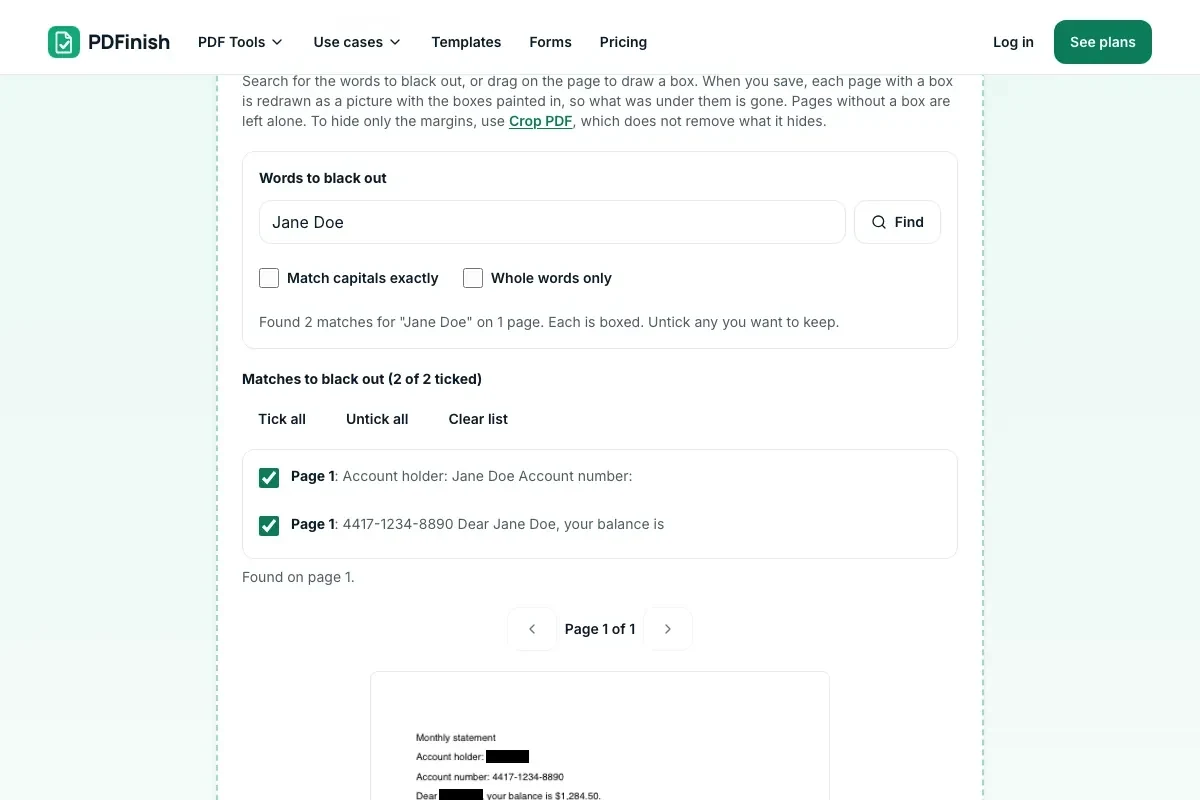
Search and box every match
Find a word or phrase and box every match. Untick the ones you want to keep.
Draw a box by hand
Drag a box on the page, or type its position. This is the way to cover a scan.
Removed, not just covered
Marked pages are redrawn as pictures with the black painted in, so the text under it is gone.
See which pages changed
The result lists the pages that became pictures.
Works on any device
Dragging a box works with a finger, and nothing needs installing.
Good to know
- A page with a box becomes a picture, so the words and images under the box are not in the file any more.
- Pages with no box are copied as they are, with their text.
- This does not promise that a file meets a legal, court or records rule. Look at every page of the result before you send it.
Common questions
How do I black out text in a PDF?
Add the file, type the word or number in the search box and press Find, then check the black boxes it puts over each match. You can also drag a box on the page for anything the search cannot find. Press Redact PDF and download the result. Your PDF is never uploaded.
Is the text under the black boxes really gone, or just covered?
Gone, on the pages you marked. A shape drawn on top of text leaves the words underneath, and anyone can select, copy or search them, which is how many redactions have leaked. PDFinish redraws each marked page as a picture with the black painted into the pixels and replaces the page with it, so the old text is not copied into the new file. Pages you did not mark keep their text.
Does this make my file legally compliant?
We do not promise that. It removes what is under the boxes on the pages you mark. Whether that meets a court, records or privacy rule is for you or a professional to decide. Always open the result and check every page, because a word the search missed or a box placed a little off will still show.
Can I redact a scanned PDF?
Yes, by drawing boxes. A scan is already pictures, and it has no text for the search to read, so Find will not match anything. Drag a box over each part to hide. The page is redrawn with the boxes painted in. For search on a scan, run OCR PDF first.
Does Redact PDF work on my phone?
Yes. It works in the browser on a phone or tablet. Dragging a box works with a finger, and you can also type a box's position.
Is my file uploaded when I use Redact PDF?
No. The text is read, the pages are redrawn and the new file is built in your browser. The file is not sent to our servers.
Is Redact PDF free, and are there limits?
You can use it free. You get 2 free uses in total, no account needed. Free files can be up to 50 MB. Pro has no limit on uses and allows files up to 500 MB. We check the limits before a use starts, so a finished file is never held back.
Can I use Redact PDF on a Windows PC?
Yes. Open this page in Chrome or Edge on your PC, add your file and download the result. Nothing to install, and your file stays on your device.
More about this tool
How to redact a PDF in 3 steps
To redact a PDF, add the file, search for the words to black out or drag boxes over the parts to hide, check the black boxes, and save. Each page with a box is redrawn as a picture with the boxes painted in, so the text under them is removed, and your file stays on your device.
- 1
Add your PDF
Drop the document onto the tool, or choose it from your device. The text on each page is read in your browser so the search can find it.
- 2
Pick what to black out
Type a word, a number or a phrase and press Find. Every match gets a black box and a line in the list, which you can untick. To hide something else, drag a box on the page, or press Add a box and type where it goes.
- 3
Save and check
Press Redact PDF. The result names the pages that became pictures. Open the file and look at every page before you send it.
Key facts
- Privacy: We don't sell your data. This tool runs in your browser, so your files stay on your device and are never uploaded.
- Ads: none. No third-party ads and no ad cookies.
- Limits: 2 free uses in total, no account needed, and no limit on uses with Pro. Files up to 50 MB free, 500 MB with Pro. Limits are checked before a use starts, never after.
- Price: free to start. Pro is $2.99 a month or $24 a year. Lifetime is $50 for the first 500 founders. Pro cancels in one click.
- Works on: Windows, Mac, iPhone, Android. Nothing to install.
- A page with a box becomes a picture. The words and images under the box are not hidden, they are not in the file any more. A black shape drawn on top of the text would leave the text there to be copied.
- Pages with no box are copied as they are, with their text. The result screen lists the pages that became pictures.
- Search finds every match of a word or phrase and boxes it. Each match is in a list, so you can untick the ones you want to keep. You can also drag a box by hand, or type its position.
- Search reads the text layer of the file. A scan has none, and words inside a picture cannot be searched, so draw a box over those.
- The boxes are painted a little larger than the words. Pages are redrawn at 200 or 300 DPI, so a picture page makes a bigger file than the text page did.
- The title, author and keywords stay unless you tick Remove document properties. Bookmarks and links that pointed at a changed page are removed and attachments are not carried over, but other bookmark names are left as they are, so check them if they name anyone.
- This removes what is under the boxes on the pages you mark. It does not promise that a file meets a legal, court or records rule. Look at every page of the result before you send it.
Last updated:
By the PDFinish editorial team · Reviewed
Redact, crop or flatten: which one hides what
| Tool | What happens to the hidden part | Use it when |
|---|---|---|
| Redact PDF | Removed from the file | A name, number or address must not be in what you send |
| Crop PDF | Hidden, but still stored | You only want to trim margins or a border |
| Flatten PDF | Kept as part of the page | You want filled-in fields locked, not removed |
Background
Why a black box is not always enough: how a PDF holds text and images.
Related toolsSecurity
Crop PDF
Crop pages to a box you draw, or trim the white margins.
Flatten PDF
Lock form fields and comments into the page.
Password Protect PDF
Add a password so only people you trust can open the file.
Compress PDF
Shrink a PDF so it is easier to email and upload.
Sign PDF
Draw or type your signature and place it on the page.
PDF Reader
Open and read a PDF in your browser. Nothing is uploaded.
Remove Metadata from PDF
Wipe the author, dates and XMP from a PDF.