PDF metadata editor
Change the title, author and keywords stored inside the file.
or drop it here. PDF files up to 50 MB
Your file stays on your device. Nothing is uploaded unless you choose Email it to me.
- 2 free uses in total, no account needed
- No ads
- Nothing to install
How it works
1. Add your PDF
Choose it from your device or drop it on the page.
2. Change the properties
Type the new title, author, subject or keywords.
3. Save the file
Save the edited copy. The pages stay exactly as they were.
What you can do in this tool
See what the file says
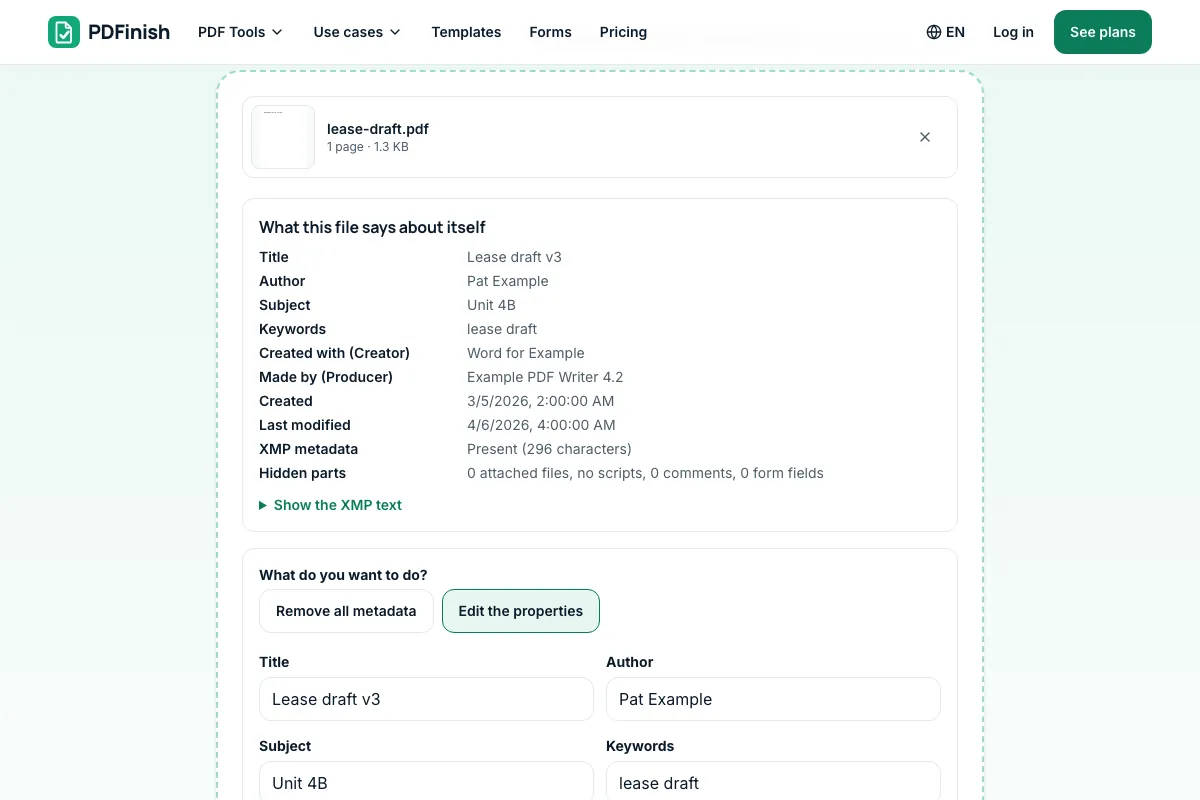
The list at the top shows the properties before you change anything.
Six properties
Change the title, author, subject, keywords, creator and producer.
Empty a box to remove it
An empty box removes that property from the file.
Set the modified date
Tick one box to set the modified date to now.
Stays on your device
Your PDF is edited in your browser.
Good to know
- The older XMP copy is dropped on save, so a viewer that prefers it cannot show the old values. The pages are not touched.
Common questions
How do I edit PDF metadata?
Add the PDF to PDF Metadata Editor, change the title, author, subject, keywords, creator or producer in the boxes and press Save the changes. Empty a box to remove that property. The pages are not touched, and the file is edited in your browser.
Which properties can I change?
The title, author, subject, keywords, creator (the program that made the file) and producer (the program that saved it). You can also set the modified date to now. The created date and custom entries are shown on the page but kept as they are; Remove all metadata clears them.
Does the PDF keep the old values somewhere?
The older XMP copy of the properties is removed when you save, so no second set of old values is left for a viewer to show. The editing result is read from the plain properties only. Run the edited file through the tool again to see what it says now.
Can I clear a property without typing anything?
Yes. Empty its box and save, and that property is removed from the file. To clear the title, author, subject, keywords, dates and XMP in one step, choose Remove all metadata instead of editing the boxes one by one.
Will editing the metadata change my pages?
No. Only the information about the file changes. The pages, text, pictures, links and form fields stay as they are, and so does the file name apart from the -edited ending. A digital signature will not survive any change, and the tool warns you if the file has one.
Is my file uploaded when I use PDF Metadata Editor?
No. Your PDF is edited in your browser. The file is not sent to our servers.
Is PDF Metadata Editor free, and are there limits?
You can use it free. You get 2 free uses in total, no account needed. Free files can be up to 50 MB. Pro has no limit on uses and allows files up to 500 MB. We check the limits before a use starts, so a finished file is never held back.
Can I use PDF Metadata Editor on a Windows PC?
Yes. Open this page in Chrome or Edge on your PC, add your file and download the result. Nothing to install, and your file stays on your device.
More about this tool
How to edit PDF metadata in 3 steps
To edit PDF metadata, add the file, change the title, author, subject, keywords, creator or producer in the boxes, and save; an empty box removes that property. The file is edited in your browser, and the older XMP copy is dropped so it cannot disagree with your changes.
- 1
Add your PDF
Drop the PDF onto the tool, or choose it from your device. Its title, author, subject, keywords and dates are shown in boxes you can change.
- 2
Change the properties
Type the new title, author, subject or keywords. Empty a box to remove that property. Tick Set the modified date to now if the date should show today. Choose Remove all metadata to clear everything at once.
- 3
Save the file
Press Save the changes and download the edited copy. The pages stay exactly as they were, and the file name gets -edited on the end.
How do I change the author of a PDF?
Add the file to PDF Metadata Editor, type the new name in the Author box and press Save the changes. To remove the author, empty the box. The change is made in your browser, and the text on the pages is not touched.
How do I change the title of a PDF?
Add the PDF to the editor and type the new title in the Title box. The title is what a browser tab and many file lists show instead of the file name. It is stored inside the file, so renaming the file alone does not change it.
How do I edit PDF metadata for free?
Use PDF Metadata Editor. You get 2 free uses in total with no account, and one finished edit counts as one use. Free files can be up to 50 MB. Pro has no limit on uses and allows files up to 500 MB.
What is the difference between the file name and the title?
The file name belongs to your computer and is the name you see in a folder. The title is stored inside the PDF and is shown in the browser tab or the title bar of a reader. They can differ, so set both if the file will be shared.
How do I add keywords to a PDF?
Add the PDF, type the words in the Keywords box, separated by commas, and save. Some file managers and search tools read them. They are stored inside the file and do not appear on the pages. Empty the box to take them out again.
Can I see the XMP metadata of a PDF?
Yes. If the file has an XMP block, the page shows the first part of its text under Show the XMP text, before you change anything. XMP repeats the properties and can hold more. Saving edits drops it, and Remove all metadata drops it as well.
Is it safe to edit the metadata of a confidential PDF online?
With PDF Metadata Editor your file is edited inside your browser and is not sent to our servers. You can check this in your browser's network tab while you work: no request carries your file. Still follow your own organization's rules for confidential documents.
Can I edit the metadata on my phone?
Yes. It works in the browser on a phone or tablet. Choose the PDF, change the boxes and save the copy. The boxes stack in one column on a narrow screen. A very large file needs a lot of memory, so it may go faster on a computer.
Can I remove all the metadata at once?
Yes. Choose Remove all metadata on the page, or open Remove Metadata from PDF. It clears the title, author, subject, keywords, dates and XMP, adds no producer line of ours, and reads the saved file back to check what is left. The pages, text and pictures stay as they are.
How do I change what is written on the pages?
Metadata is not on the pages, so the editor cannot change what you read. To change the words, use Edit PDF. To black out names or numbers before sharing, use Redact PDF. Both run in your browser too, and neither uploads your file anywhere.
Key facts
- Privacy: We don't sell your data. This tool runs in your browser, so your files stay on your device and are never uploaded.
- Ads: none. No third-party ads and no ad cookies.
- Limits: 2 free uses in total, no account needed, and no limit on uses with Pro. Files up to 50 MB free, 500 MB with Pro. Limits are checked before a use starts, never after.
- Price: free to start. Pro is $2.99 a month or $24 a year. Lifetime is $50 for the first 500 founders. Pro cancels in one click.
- Works on: Windows, Mac, iPhone, Android. Nothing to install.
- Your PDF is edited in your browser. It is never uploaded.
- You can change the title, author, subject, keywords, creator and producer, and choose to set the modified date to now. An empty box removes that property.
- The list at the top shows what the file says before you change it, including any XMP text and counts of attached files, scripts, comments and form fields.
- The older XMP copy is dropped on save, so a viewer that prefers it cannot show the old values. The pages are not touched.
Last updated:
By the PDFinish editorial team · Reviewed
Related toolsEdit
Remove Metadata from PDF
Wipe the author, dates and XMP from a PDF.
PDF Editor
Change a line of text, or add text, shapes and images.
Add Bookmarks to PDF
Add and reorder bookmarks that jump to pages.
Password Protect PDF
Add a password so only people you trust can open the file.
Flatten PDF
Lock form fields and comments into the page.
Compress PDF
Shrink a PDF so it is easier to email and upload.