Convert an image to PDF
Add any common picture, put them in order, and download one PDF.
or drop them here. JPG, PNG, WebP, GIF, BMP, TIFF or HEIC. Images up to 50 MB
Your file stays on your device. Nothing is uploaded unless you choose Email it to me.
- 2 free uses in total, no account needed
- No ads
- Nothing to install
How it works
1. Add your pictures
Choose your pictures from your device or drop them on the page.
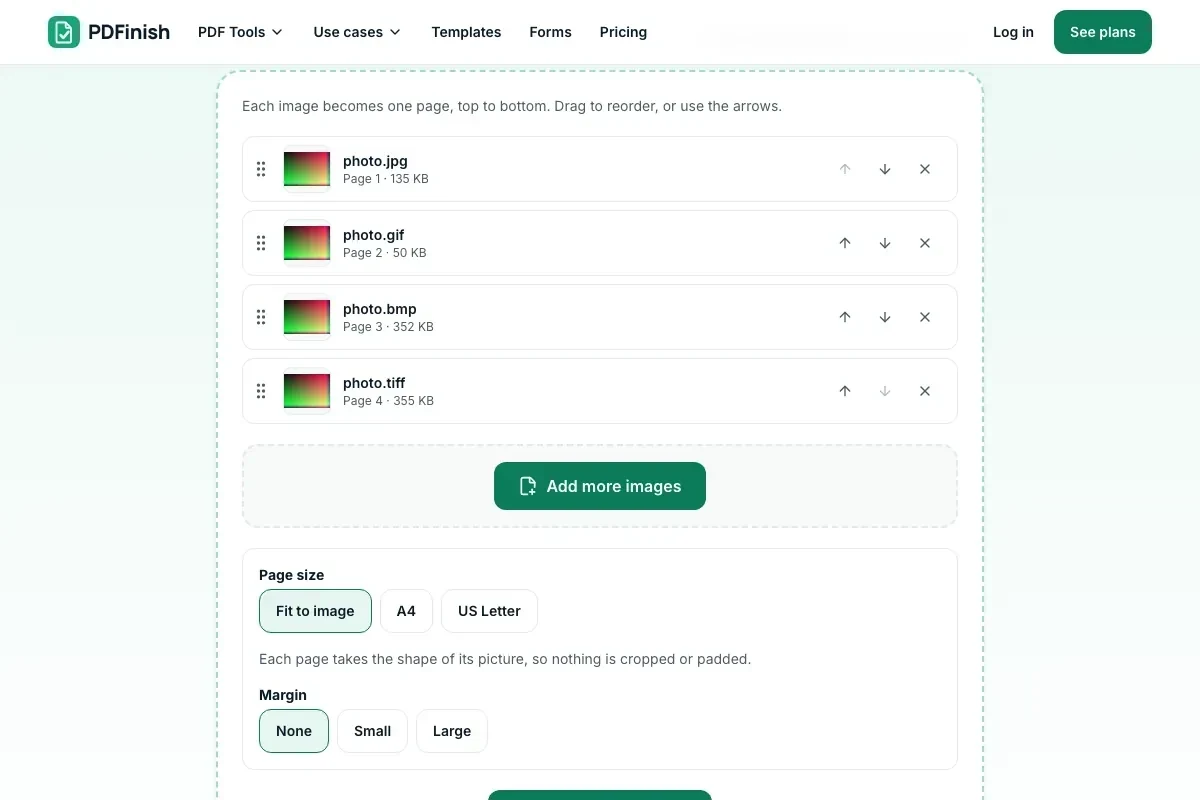
2. Order them and pick a page size
Move them into order and pick a page size.
3. Download your PDF
Save the PDF. Each picture becomes a page.
What you can do in this tool
Mix picture types
A JPG, a PNG and a TIFF can share one PDF, one page each.
Nothing is lost
JPG and PNG go in without re-encoding. WebP, GIF, BMP and TIFF pages are saved so nothing is lost.
Pick a page size
Fit each page to its picture, or use A4 or US Letter with a margin you choose.
Put them in order
Move the pictures into the order you want. Each picture becomes one page.
Stays on your device
Your pictures are converted in your browser. The file is not sent to our servers.
Works on any device
Runs in your browser on Windows, Mac, iPhone, Android or a Chromebook. Nothing to install.
Good to know
- JPG and PNG pictures go into the PDF without being re-encoded. WebP is saved as a high-quality JPEG; GIF (first frame), BMP and each TIFF page are saved as PNG, so nothing is lost.
- Pictures can be mixed: a JPG, a PNG and a TIFF can share one PDF, one page each.
- HEIC photos from an iPhone work in Safari, and in any browser on an iPhone or iPad. In other browsers, save them as JPG first.
Common questions
Which image types can I turn into a PDF?
JPG, PNG, WebP, GIF, BMP and TIFF, plus HEIC photos where your browser can read them. You can mix types in one go. Each picture becomes one page, and a multi-page TIFF gives one page for each of its pages.
What happens to an animated GIF?
Only the first frame goes into the PDF, because a PDF page cannot move. If you want a later frame, save it as a PNG first.
What page sizes can I choose?
Fit to image, A4 or US Letter. For A4 and Letter you can pick portrait, landscape or automatic, and a margin of none, small or large. Fit to image makes each page the shape of its picture, so nothing is cropped or padded.
Does it work with HEIC photos from an iPhone?
Yes, where your browser can read them. Safari on a recent iPhone, iPad or Mac can, and so can every browser on an iPhone or iPad. The photo is decoded on your device and saved in the PDF as a JPEG. A browser that cannot read HEIC tells you so, and then you can save the photo as JPG first.
Is this the same as JPG to PDF?
It is the same tool with more picture types. JPG to PDF and PNG to PDF take the common types; Image to PDF also takes GIF, BMP and TIFF.
Is my file uploaded when I use Image to PDF?
No. Your pictures are placed into the PDF in your browser. The file is not sent to our servers.
Is Image to PDF free, and are there limits?
You can use it free. You get 2 free uses in total, no account needed. Free files can be up to 50 MB. Pro has no limit on uses and allows files up to 500 MB. We check the limits before a use starts, so a finished file is never held back.
Can I use Image to PDF on a Windows PC?
Yes. Open this page in Chrome or Edge on your PC, add your file and download the result. Nothing to install, and your file stays on your device.
More about this tool
How to convert an image to PDF in 3 steps
To convert an image to PDF, add your pictures, put them in order, choose a page size, and download one PDF. JPG, PNG, WebP, GIF, BMP, HEIC and TIFF all work, and they stay on your device.
- 1
Add your pictures
Drop JPG, PNG, WebP, GIF, BMP or TIFF pictures onto the tool, or choose them from your device. On a phone or tablet, Take a photo opens your camera. HEIC photos from an iPhone work in Safari, and in any browser on an iPhone or iPad. In other browsers, save them as JPG first.
- 2
Order them and pick a page size
Move the pictures into order. Fit each page to its picture, or use A4 or US Letter with a margin you choose.
- 3
Download your PDF
Save the finished file. Each picture becomes a page, and each page of a multi-page TIFF does too.
Key facts
- Privacy: We don't sell your data. This tool runs in your browser, so your files stay on your device and are never uploaded.
- Ads: none. No third-party ads and no ad cookies.
- Limits: 2 free uses in total, no account needed, and no limit on uses with Pro. Files up to 50 MB free, 500 MB with Pro. Limits are checked before a use starts, never after.
- Price: free to start. Pro is $2.99 a month or $24 a year. Lifetime is $50 for the first 500 founders. Pro cancels in one click.
- Works on: Windows, Mac, iPhone, Android. Nothing to install.
- JPG and PNG pictures go into the PDF without being re-encoded. WebP is saved as a high-quality JPEG; GIF (first frame), BMP and each TIFF page are saved as PNG, so nothing is lost.
- Pictures can be mixed: a JPG, a PNG and a TIFF can share one PDF, one page each.
Last updated:
By the PDFinish editorial team · Reviewed
Which page suits which picture
| Your pictures | Best page |
|---|---|
| iPhone photos in HEIC | HEIC to PDF, which checks your browser first |
| Screenshots you copied | Screenshot to PDF, which accepts a paste |
| JPG photos | JPG to PDF |
| GIF, BMP or TIFF, or a mix | This page |
Related toolsConvert
JPG to PDF
Turn photos and scans into a single PDF.
PNG to PDF
Turn PNG images and screenshots into a single PDF.
HEIC to PDF
Turn iPhone HEIC photos into a PDF.
Screenshot to PDF
Paste screenshots and save them as one PDF.
WebP to PDF
Turn WebP images saved from the web into a PDF.
TIFF to PDF
Turn TIFF scans into a PDF, every page included.
Scan to PDF
Photograph paper pages and make one PDF.
Merge PDF
Combine several PDFs into one file, in the order you choose.
Compress PDF
Shrink a PDF so it is easier to email and upload.
Image to Text
Pull the text out of a photo or screenshot.
SVG to PDF
Turn an SVG into a PDF that stays sharp at any size.
JFIF to PDF
Turn .jfif pictures into a PDF.
GIF to PDF
Turn GIF pictures into a PDF.
AVIF to PDF
Turn AVIF pictures into a PDF.
BMP to PDF
Turn BMP pictures into a PDF.
ZIP to PDF
Turn a zip of pictures and files into one PDF.
CBZ to PDF
Turn a CBZ comic into one PDF.