How to fill out a PDF that isn't fillable
By the PDFinish editorial team · Reviewed · Published · 4 min read
Last updated:
Open the PDF in Fill PDF. If it has no fillable fields, the tool says so and lets you type right on the lines, tick the boxes, add your signature and date, and download the finished copy. Your form stays on your device.
You get a form from work, a school, a landlord or a benefits office. You click on a line to type and nothing happens. The PDF is just a picture of a form, with no fields to fill in. That is common, and you do not need a printer, a pen or a scanner to deal with it.
This guide shows how to fill out a PDF that is not fillable, how to tell which kind you have, and what to do on a phone. It uses a made-up sample form, never a real person's paperwork.
Fill it in three steps
These steps use Fill PDF. It runs in your browser, so your answers are not uploaded.
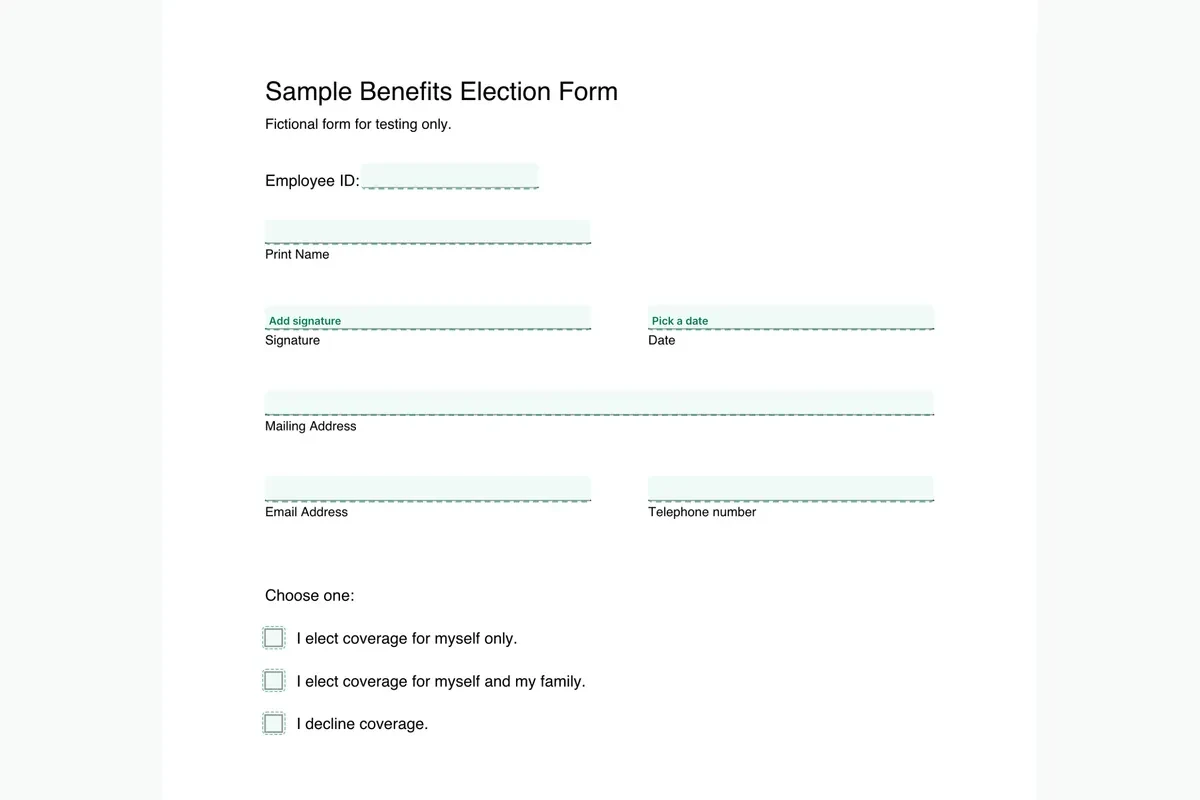
- Add your form. Open Fill PDF and drop the PDF onto the page, or choose it from your device. If the form has no fields, a note says so: This PDF has no fillable fields. Then the tool looks for the blank lines and empty boxes on the page.
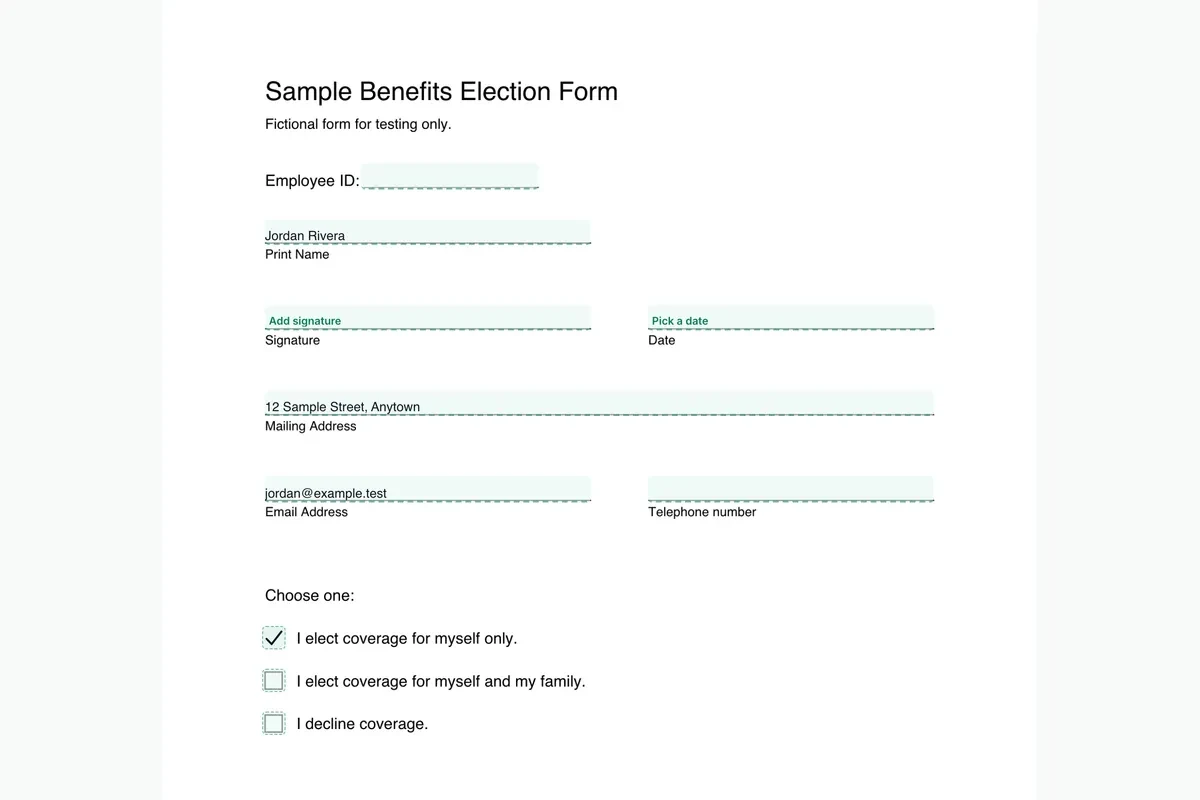
- Type on the lines and tick the boxes. Click a line to type, click a box to tick it, and press Tab to jump to the next blank. Use the Check, X or Dot buttons to choose how a tick looks.
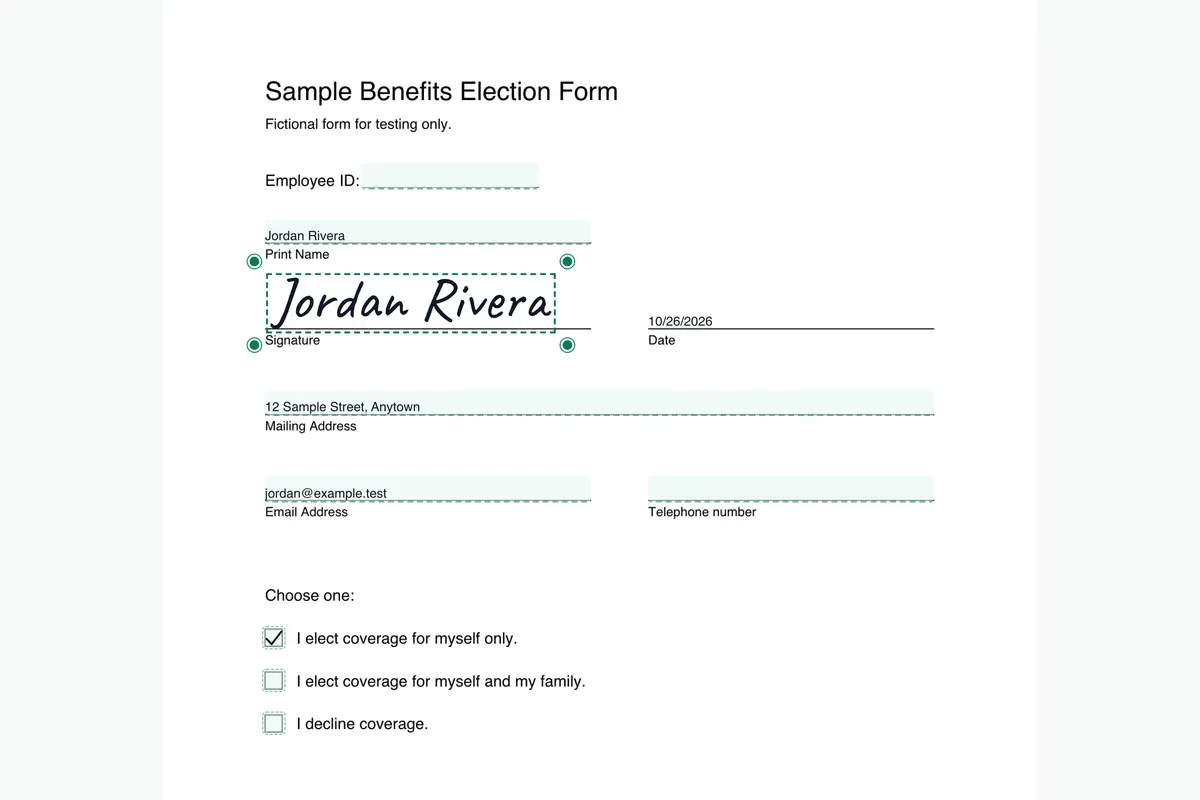
- Sign, date and download. Add your signature and the date in the same screen, check the short list of spots that still look empty, then press Finish and download.
How to tell if a PDF is fillable
A fillable PDF has real fields. When you hover over a line, the cursor changes, and the fields may light up in a color. A PDF that is not fillable shows nothing when you click it.
You do not have to guess. Add the file to Fill PDF. If it has fields, you type into them. If it has none, you see the note that says so, and the tool switches to typing on the page. You never reach a dead end.
Why some PDFs have no fields
- The form was made in a word processor and saved as a PDF. The lines are drawn on the page, but nobody turned them into fields.
- The form was printed and scanned. A scan is a picture of paper, so the lines and boxes are part of the picture.
- Someone flattened it. Flattening bakes fields into the page so they cannot change, and it removes the fields.
- It is a form from an employer, a benefit plan, a school or a landlord, made in a hurry. Plenty of real forms are plain PDFs.
What the tool does with a plain page
Fill PDF looks for lines to write on and small squares to tick. A line becomes a spot to type, sized to the line. A square becomes a spot to tick. A label such as Date or Signature opens the date or signature screen, and Email and Telephone give you the right keyboard on a phone.
Boxes that answer one question are grouped, so ticking one clears the other. Type a date or ZIP code once and it spreads across small boxes. If the tool misses a spot, click the page where you want text or a mark and place it yourself.
A scanned page works too, though the tool may find fewer spots. You can still click anywhere to add text. If you would rather turn the page into a form that fills in on any device, try Create Fillable PDF.
Filling it in on a phone
Lines on a form are small, so use the Zoom in button to reach them, then tap a line and type. The page does not scroll sideways at phone width, and the keyboard matches the field, such as email or telephone. If a line is too tight, zoom in a little more before you tap.
Sign it, and what a signature here means
You can draw, type or upload a signature and place it on the line. It is a picture of your signature, not a certificate-based digital signature. Whether the person who sent the form accepts it is their call, so follow the instructions on the form. For a longer walk through, see how to sign a PDF without printing it.
Check it before you send it
- Every line you meant to fill has text, and nothing sits on top of a label.
- Your tick is in the box you meant, and the other boxes in that group are empty.
- The signature and the date are on the right lines.
- The file name is clear, such as Jordan-Rivera-form-filled.pdf.
Your form is read in the browser and your answers are drawn onto the page on your device. Nothing is uploaded. Your 2 free uses in total need no account. If your form does have fields, our guide on how to fill out a PDF form covers them. Jobs that need forms are collected on the job seekers page.
Making the form yourself so others can fill it? See how to create a fillable PDF.
Questions people ask
How do I fill out a PDF that isn't fillable?
Open it in Fill PDF. If the PDF has no fields, the tool finds the blank lines and boxes so you can type on the lines, tick the boxes, add a signature and date, and download the finished copy.
How can I tell if a PDF is fillable?
Add it to Fill PDF. A form with fields lets you type into them. A form without fields shows a note that says This PDF has no fillable fields, and the tool switches to typing on the page.
Can I fill out a non-fillable PDF on my phone?
Yes. Use Zoom in to reach the small lines, then tap a line and type or tap a box to tick it. The page stays within your screen width.
Is my form uploaded when I fill it in?
No. The form is opened and filled in your browser, and your answers are drawn into the page on your device.
Is it free to fill out a PDF that isn't fillable?
Yes. Your 2 free uses in total need no account.
What if the tool misses a line or a box?
Click the page where you want text or a mark and place it yourself. Free placement works on any page, including scans.
Try it
- Fill PDF
Fill a PDF form, with or without fillable fields: type, tick, sign and date.
- Sign PDF
Draw or type your signature and place it on the page.
- Finish PDF
Fill, sign, lock and shrink a PDF in one guided flow, then save it.
This article is general information, not legal or tax advice. See how we write and check guides in our editorial policy. More plain guides are on the PDFinish blog.